Can You Keep a Secret? (teaser)

All the latest news about WYSIWYG Web Builder can be read in this section

*** The current version is: WYSIWYG Web Builder 20.4.2 ***


Locked
User avatar
Pablo
 
Posts: 24302
Joined: Sun Mar 28, 2004 12:00 pm
Location: Europe
Contact:

Can You Keep a Secret? (teaser)

Post by Pablo »

Welcome to the Feature Reveal of WYSIWYG Web Builder 21!

We’re excited to give you an exclusive first look at the next major version of WYSIWYG Web Builder.

Over the coming weeks, we’ll be unveiling brand-new features, improvements, and enhancements that make version 21 our most powerful release yet.
This topic will be updated daily (on working days), so be sure to check back regularly, you won’t want to miss what’s coming next!

The official release date is still to be announced, but we’ll share more details as soon as they’re confirmed.

🎉 Special Launch Offer
Purchase Version 20 today and receive Version 21 FREE as soon as it becomes available.
As always, this offer also applies to all licenses purchased within 60 days prior to the official release date.

New to WYSIWYG Web Builder?
For a limited time, new users can enjoy an exclusive 25% discount — pay just $44.95 instead of the regular price of $59.95.

There’s never been a better time to get started:
https://www.wysiwygwebbuilder.com/purchase.html

Stay tuned… exciting things are on the way. 🚀

Image
User avatar
Pablo
 
Posts: 24302
Joined: Sun Mar 28, 2004 12:00 pm
Location: Europe
Contact:

Re: Can You Keep a Secret? (teaser)

Post by Pablo »

Easy Breakpoints

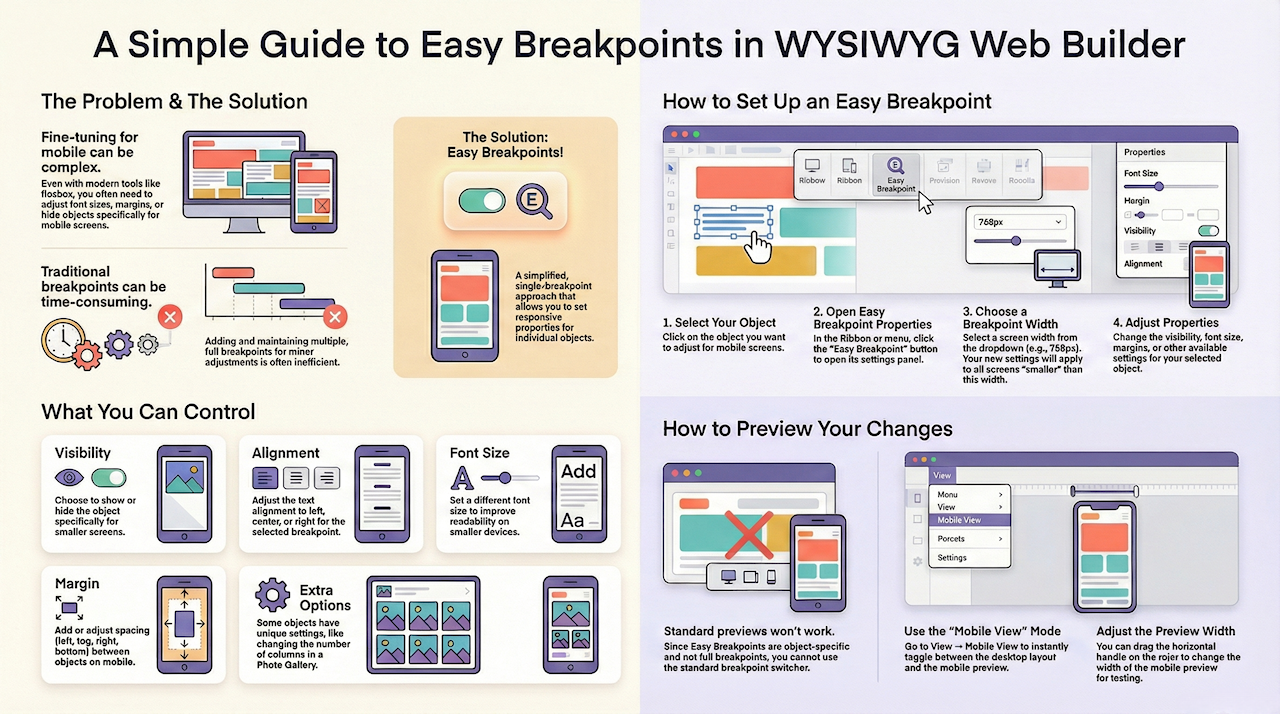
Sometimes, when you want to make a web layout responsive / mobile friendly all you really want is to hide or show specific object, change the font size or use a different margin. In that case, adding breakpoints for the entire page may be overkill and difficult to maintain.

Introducing a simplified way to make specific objects responsive: Easy Breakpoints.

Image

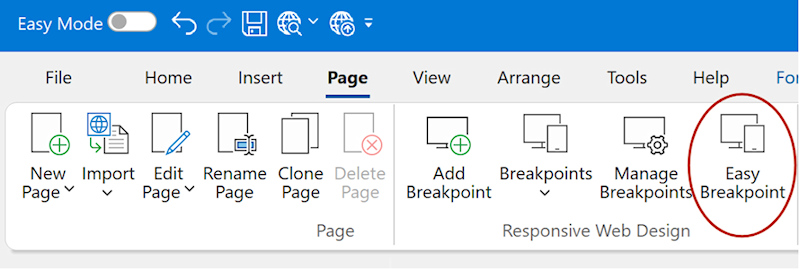
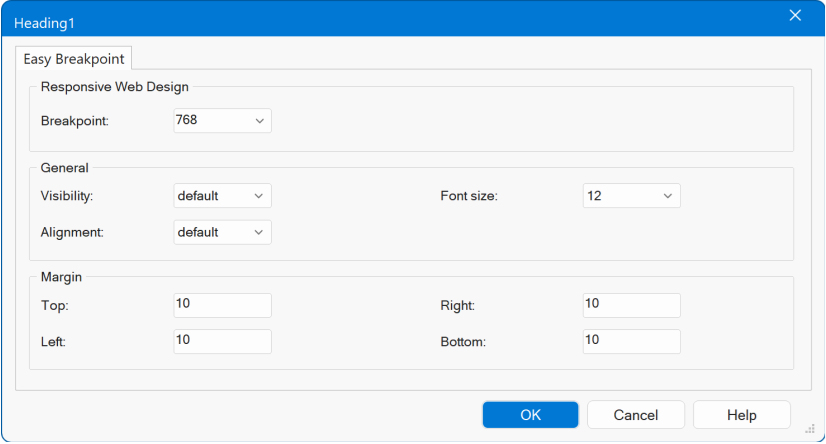
For most objects you can now simplify this task by using the new 'Easy Breakpoint' properties.
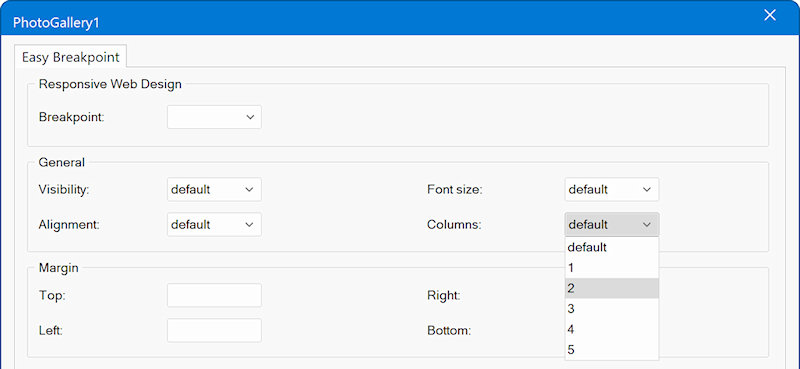
This is a single breakpoint where you can set some responsive properties just for that object, visibility, font-size, margin, padding or alignment.

Image

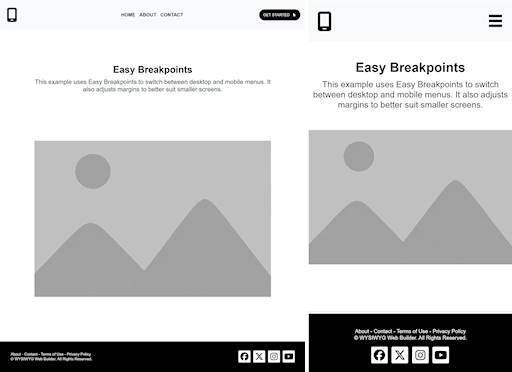
In the example below, we did not use any page breakpoints, but instead use Easy Breakpoint to set the responsive behavior for specific objects only.

Image

Demo
https://www.wysiwygwebbuilder.com/support/wb21tryouts/wb21_easybreakpoints.html

Some objects also support additional specialized options, for example:
• Photo Gallery: Set a different number of columns for the selected breakpoint.
• Flex containers and Flex Grid: Stack content at the selected breakpoint and adjust column alignment (for example, centering content on mobile).

Image

Another advantage of Easy Breakpoints is that they’re applied directly to the object, not the page. This means you can copy and paste the object into another page or even a different project, and all of its breakpoint properties will automatically come with it (unlike page breakpoints).

Image
User avatar
Pablo
 
Posts: 24302
Joined: Sun Mar 28, 2004 12:00 pm
Location: Europe
Contact:

Re: Can You Keep a Secret? (teaser)

Post by Pablo »

Image Converter

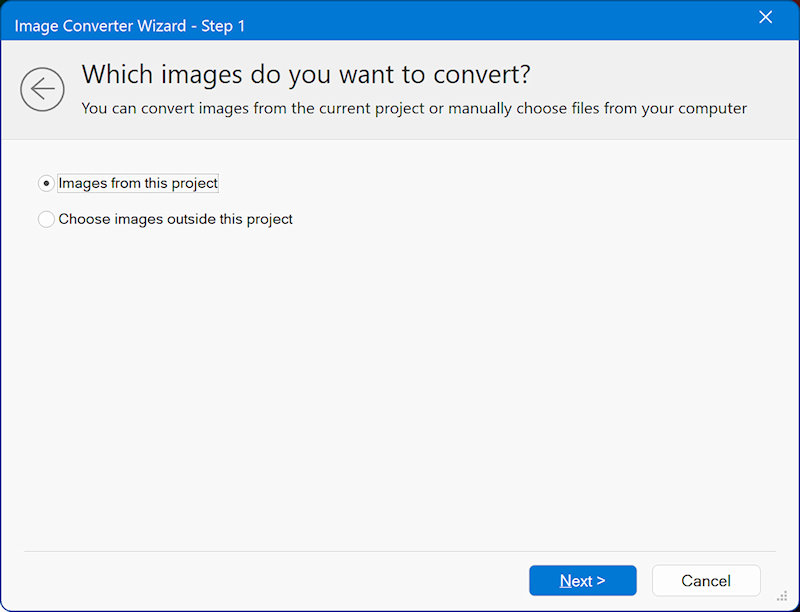
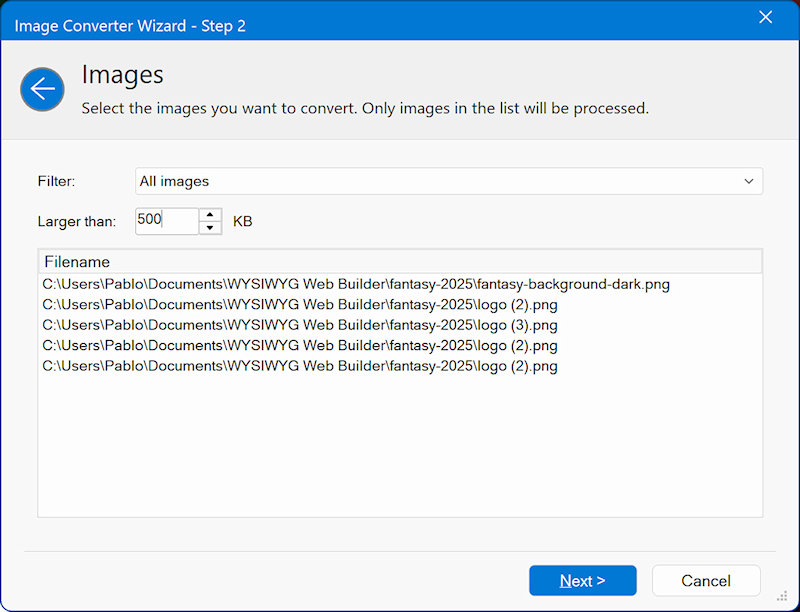
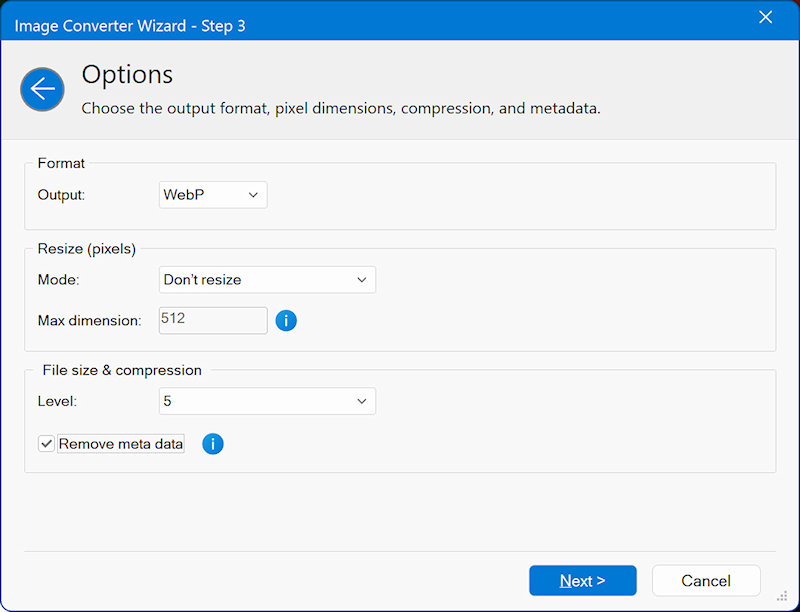
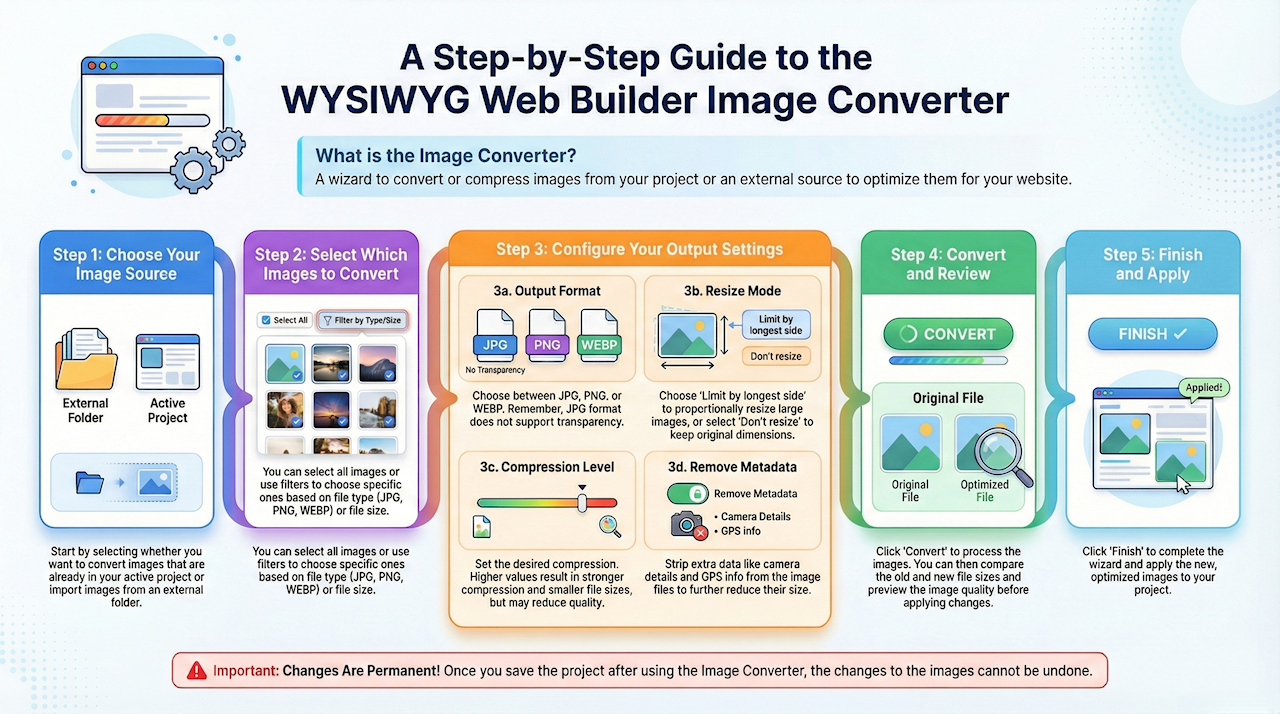
Added 'Image Converter' tool. The Image Converter is a new wizard that can be used to convert or compress images used by the project, but it also be used for external images!

Convert to jpg, png or webp format, set the maximum image dimensions and / or use compression to shrink the size of the images. It is also possible to remove meta data. When the tool is used for images used by the project, you can first preview the result before applying the new images to the project (automatically).

Image

Image

Image

Image
User avatar
Pablo
 
Posts: 24302
Joined: Sun Mar 28, 2004 12:00 pm
Location: Europe
Contact:

Re: Can You Keep a Secret? (teaser)

Post by Pablo »

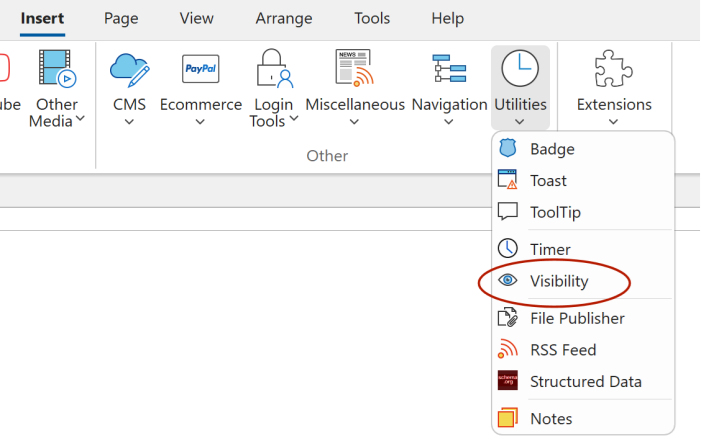
Visibility

A powerful utility for monitoring an element’s position within the viewport.
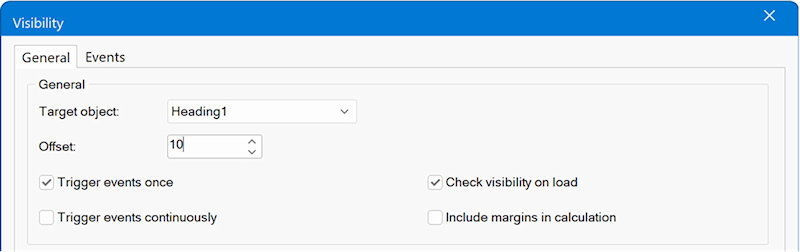
The Visibility object provides a set of events that make it easy to trigger actions based on how an element enters or leaves the visible area of the screen.

Image

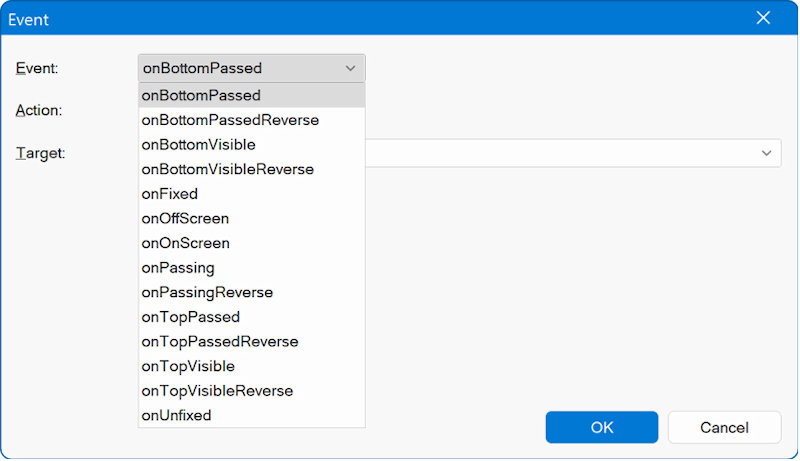
• onOnScreen – Triggered when any part of the element is within the current scroll viewport.
• onOffScreen – Triggered when no part of the element is visible in the viewport.
• onTopVisible – Triggered when the top edge of the element passes the bottom edge of the viewport.
• onBottomVisible – Triggered when the bottom edge of the element passes the bottom edge of the viewport.
• (and more...)

Image

Image

These events can be used to build interactive experiences, such as showing or hiding elements, starting or stopping media playback, or applying dynamic style changes.
Additionally, the Visibility object includes an option to fix an element’s position, so it remains visible in the viewport when it is about to scroll out of view.

You can apply custom CSS to define how the element should appear in its fixed state, for example, repositioning it or applying alternative styles.

Demos:
https://www.wysiwygwebbuilder.com/support/wb21tryouts/wb21_sticky.html

https://www.wysiwygwebbuilder.com/support/wb21tryouts/wb21_visibility.html
User avatar
Pablo
 
Posts: 24302
Joined: Sun Mar 28, 2004 12:00 pm
Location: Europe
Contact:

Re: Can You Keep a Secret? (teaser)

Post by Pablo »

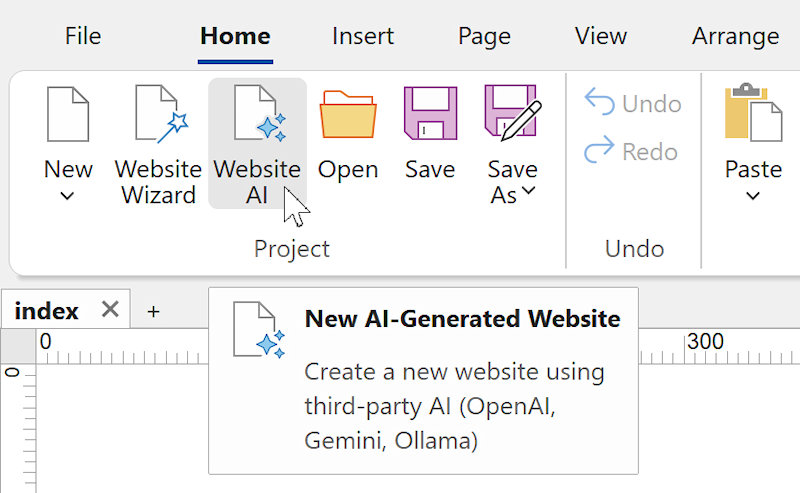
Create a new website using AI (text-to-website or image-to-website)

Added the ability to create a new website via text-to-website or image-to-website.
Image

WYSIWYG Web Builder already offered several quick ways to start a new project, such as using Blocks, selecting a Template, or using the Website Wizard.
With this update, we are introducing an entirely new workflow: Website AI.

The new Website AI feature allows you to create a fully structured website using only natural-language instructions, powered by third-party AI providers such as OpenAI, Google Gemini, Ollama or LM Studio (local, free).
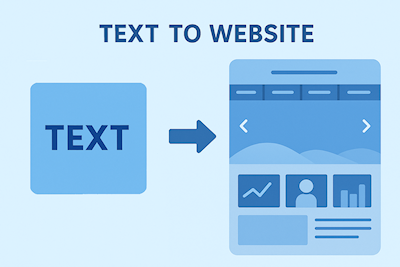
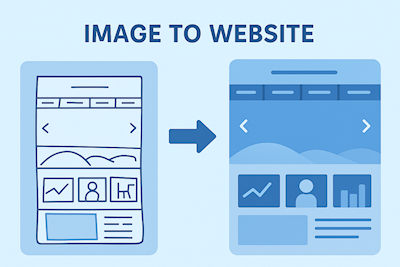
Image Image

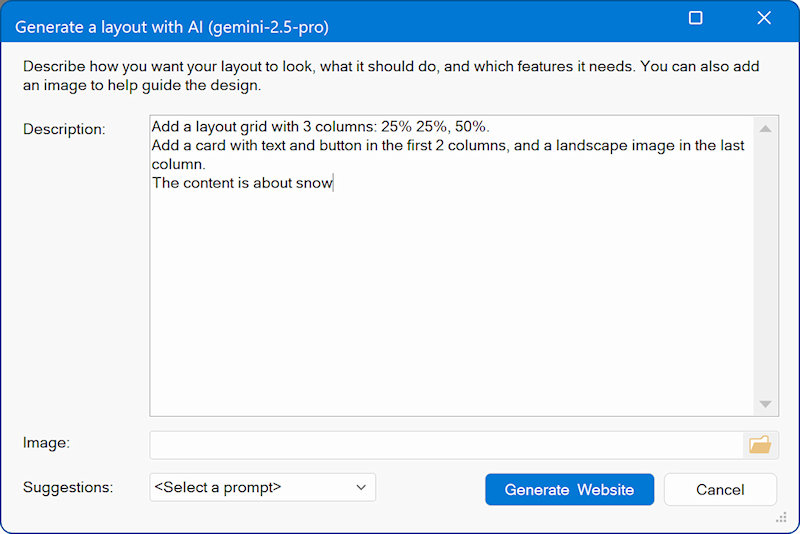
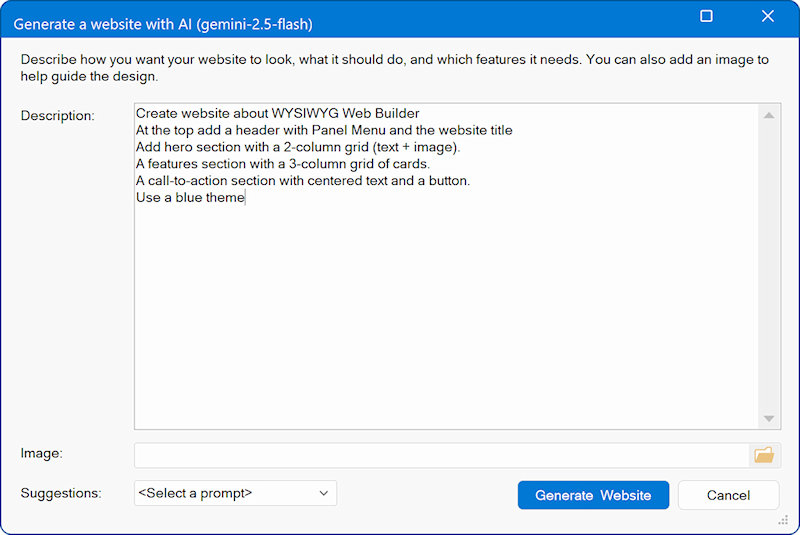
Simply describe the layout, content, colors, components, or overall design style you want. You can even upload an optional reference image, such as a sketch, wireframe, or mood board to guide the visual direction.
Once submitted, your description is sent to the selected AI model. The AI generates detailed layout instructions, which Web Builder uses to automatically construct a complete website based on your specifications.

The generated website may include one or multiple pages, and supports a wide range of elements, such as:
• Text blocks and headings
• Image placeholders with different aspect ratios (16:9, 4:3, 3:2, 1:1 etc)
• Layout grids
• Cards and content sections
• Buttons and interactive components
• Navigation menus (single or multi-level) and links
• Styling like font size, colors, backgrounds and borders
• Forms with customizable fields
• Custom scripts, JavaScript or PHP
• More features will be supported in upcoming updates
Image

This new tool enables designers, developers, and beginners alike to prototype full websites quickly, creatively, and without manual layout work all from a simple text description.

Examples
1. Very Simple Prompt
“Create a one-page website about my bakery with a short welcome text and a picture placeholder.”

2. Simple / Medium Prompt
“Build a small website for a local dog-walking service with a home page, an ‘about me’ section, and a contact form. Use friendly colors like light blue and green and include icons for phone and email.”

3. Medium Prompt
“Design a two-page website for a fitness coach. The home page should have a hero section, a list of services, and a testimonials section. The second page should contain a booking form. Use bold colors like black, red, and white.”

4. Advanced Prompt
“Create a modern portfolio site for a freelance photographer. Include a homepage with a large hero banner, a gallery section with 12 placeholder images, an ‘about’ page, and a contact page with a form. Use minimalist colors (white, dark gray, gold) and a clean grid-based layout.”

5. Highly Detailed / Complex Prompt
“Generate a multi-page website for a tech startup. Include pages for Home, Product, Pricing, Blog, and Contact. The home page needs a hero section with a short pitch, three feature cards, a comparison table, and a call-to-action. The Product page should include a step-by-step diagram and FAQs. The Blog page should have a list of article previews. Use a professional color scheme (navy, white, cyan). Add icons for features and a detailed contact form with fields for name, email, company, and message.”
User avatar
Pablo
 
Posts: 24302
Joined: Sun Mar 28, 2004 12:00 pm
Location: Europe
Contact:

Re: Can You Keep a Secret? (teaser)

Post by Pablo »

Add AI Content To Existing Layouts

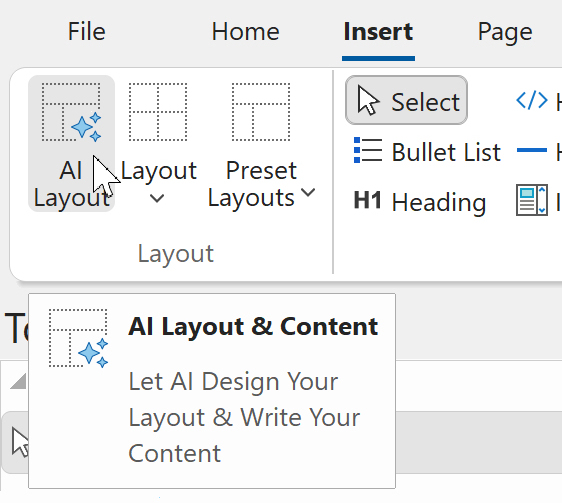
In addition to creating a complete website from scratch, you can also enhance existing pages using AI.

Image

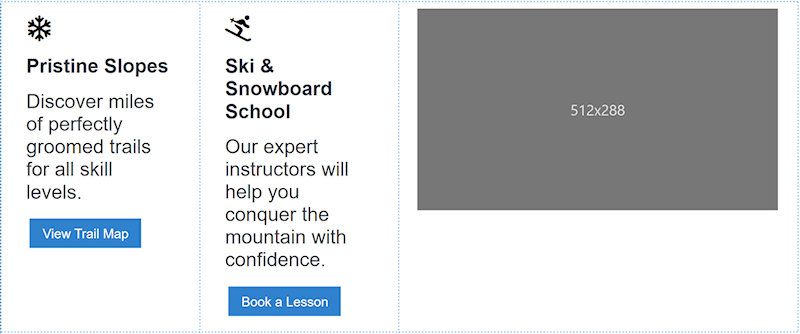
This allows you to generate new sections, components, or layout blocks and seamlessly insert them into the current design.
It’s a quick way to expand your site with fresh content, such as hero sections, galleries, info blocks, or forms without rebuilding the entire page.

Image

Image

Prompt:
Create a button menu with an icon for each item, use the following menu items: Programs,
Courses, Resources, About, Contact

Image

Prompt:
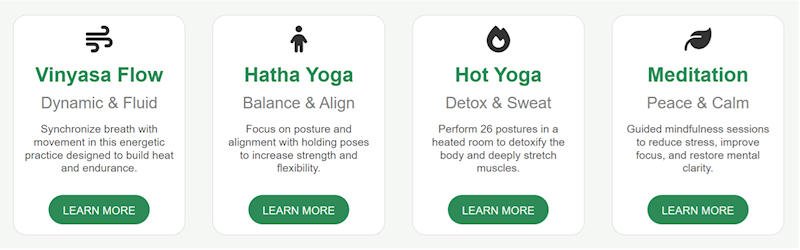
Create a layout grid with 4 columns for a Yoga website. Each column has a services card with title, subtitle, icon, description and a "LEARN MORE" button.

Image

Prompt:
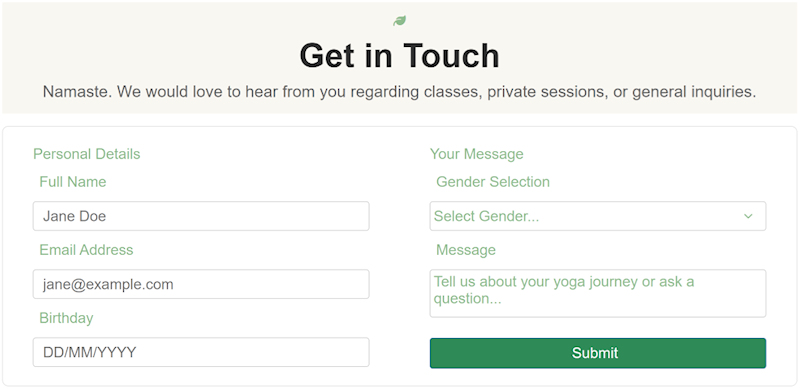
Create a contact form for a Yoga website. The form should have input fields for name, email, message, birthday and gender selection.

Image
User avatar
Pablo
 
Posts: 24302
Joined: Sun Mar 28, 2004 12:00 pm
Location: Europe
Contact:

Re: Can You Keep a Secret? (teaser)

Post by Pablo »

Mesh Gradients

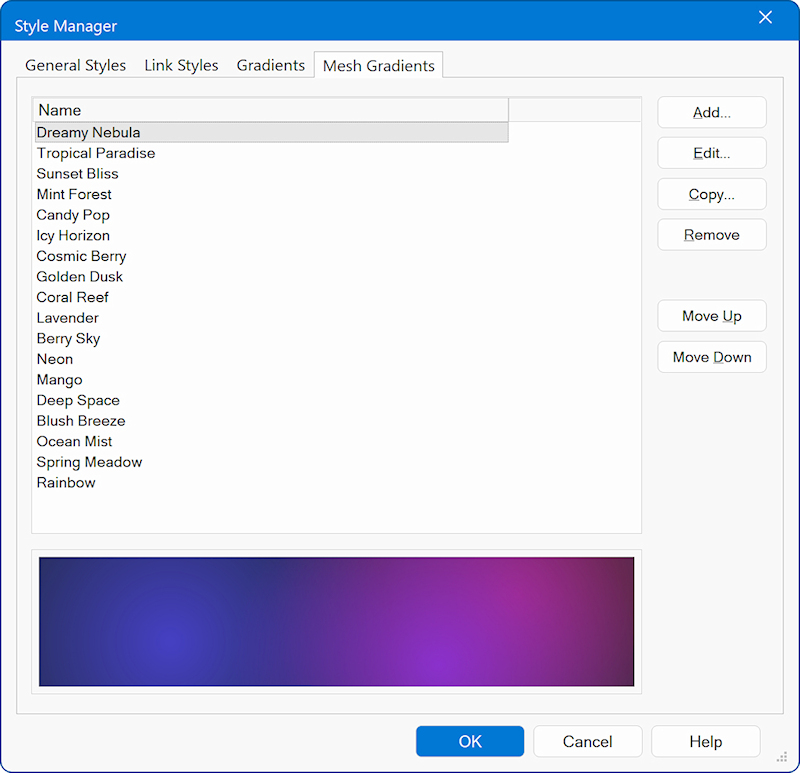
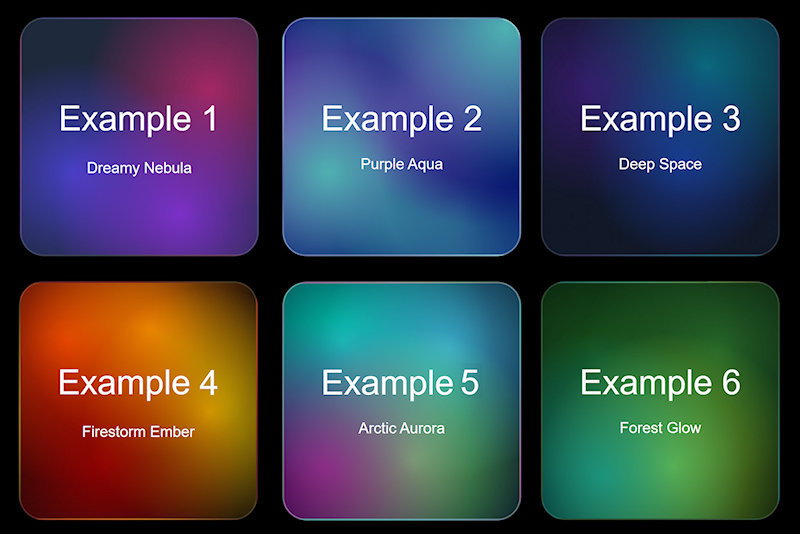
- Added a new background type: Mesh Gradients. A mesh gradient is a soft, colorful background where several colors melt into each other—not just in a straight line or perfect circle, but organically across the whole area. Looks modern and organic compared to plain linear or radial gradients. Great for hero sections, website backdrops or other backgrounds.

Image

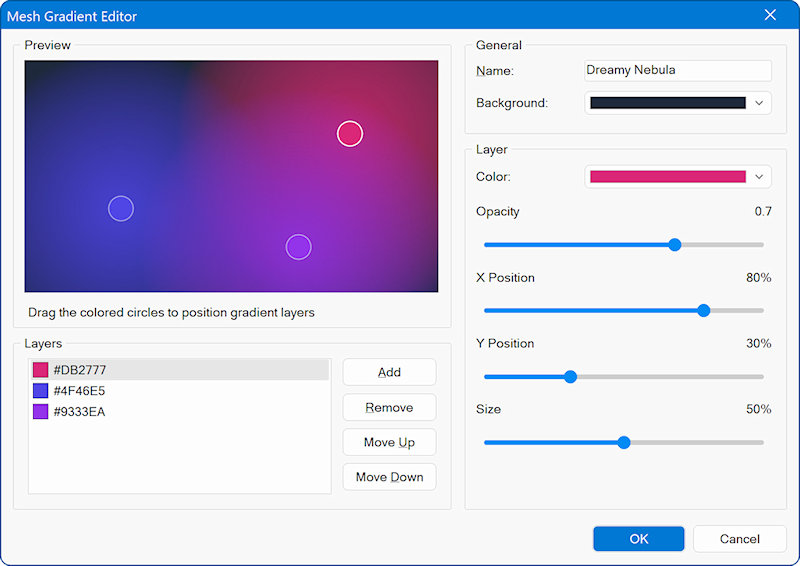
Each point has a color, size/strength, and opacity. Move the points around and the blend changes—colors pull toward their points like soft lights.

Image

There are more than 25 predefined mesh gradients, but you can also create your own variants with the new Mesh gradient editor.

Image

Demo
https://www.wysiwygwebbuilder.com/support/wb21tryouts/wb21_meshgradients.html
User avatar
Pablo
 
Posts: 24302
Joined: Sun Mar 28, 2004 12:00 pm
Location: Europe
Contact:

Re: Can You Keep a Secret? (teaser)

Post by Pablo »

Glass morphism

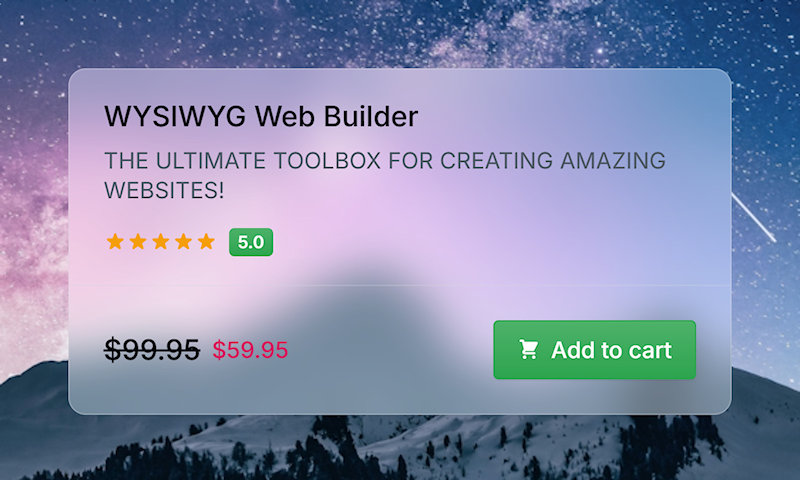
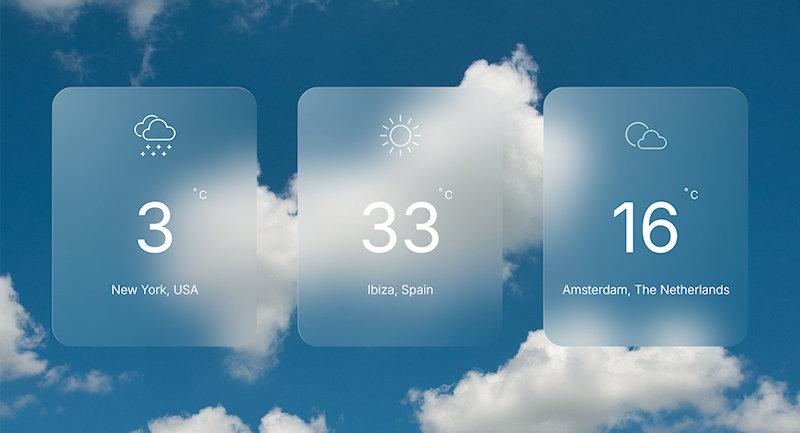
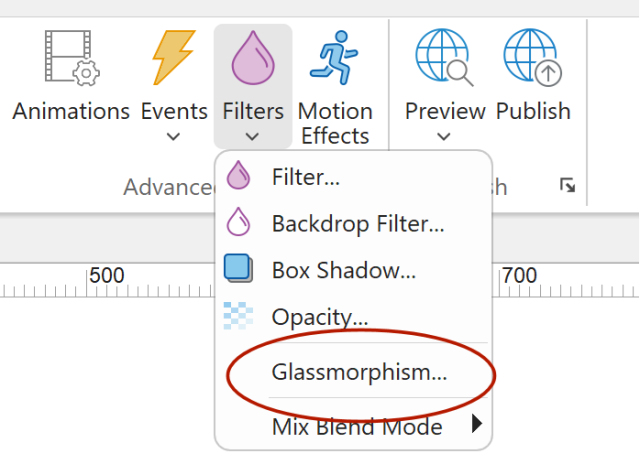
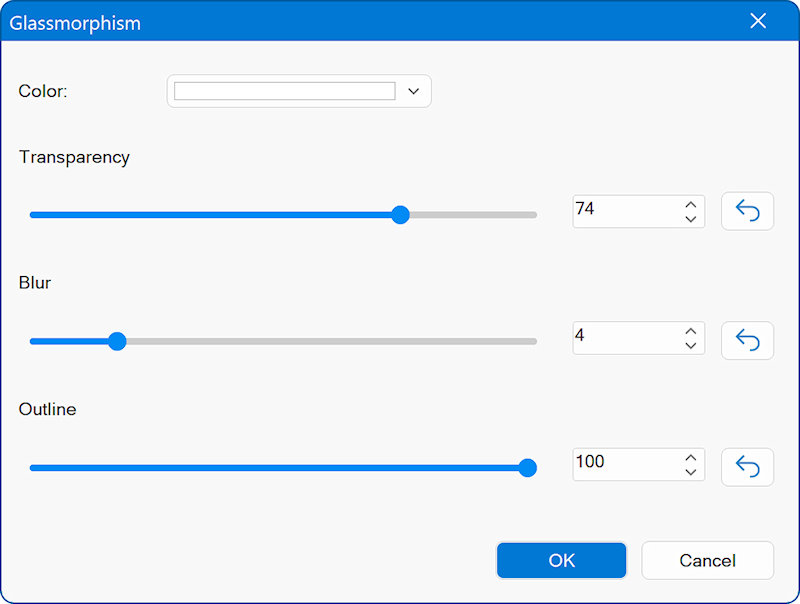
- Glass morphism. Added an easy way to add Glass Effects to objects. Although it was already possible to create this effect, previously you had to adjust the settings in different parts of the properties. Now the properties that control the glass effect are grouped in one place. Glass morphism options control: background color, transparency, outline and backdrop blur.

Image

Image

Image

Image

Demos
https://www.wysiwygwebbuilder.com/support/wb21tryouts/wb21_glasscard.html

https://www.wysiwygwebbuilder.com/support/wb21tryouts/wb21_weather.html
User avatar
Pablo
 
Posts: 24302
Joined: Sun Mar 28, 2004 12:00 pm
Location: Europe
Contact:

Re: Can You Keep a Secret? (teaser)

Post by Pablo »

Filters

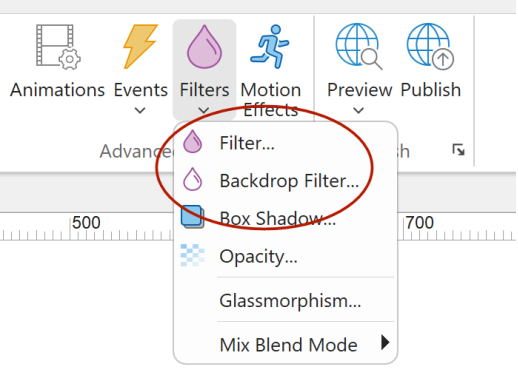
- New feature: Added filter and backdrop-filter properties. These properties were previously tucked away under the transition settings, making them harder to access. They are now also available as standalone, easily adjustable settings for more direct control.

Image

Image

Demo
https://www.wysiwygwebbuilder.com/support/wb21tryouts/wb21_filters.html

- New feature: The workspace now renders visual effects like back drop filters and filters in the workspace.

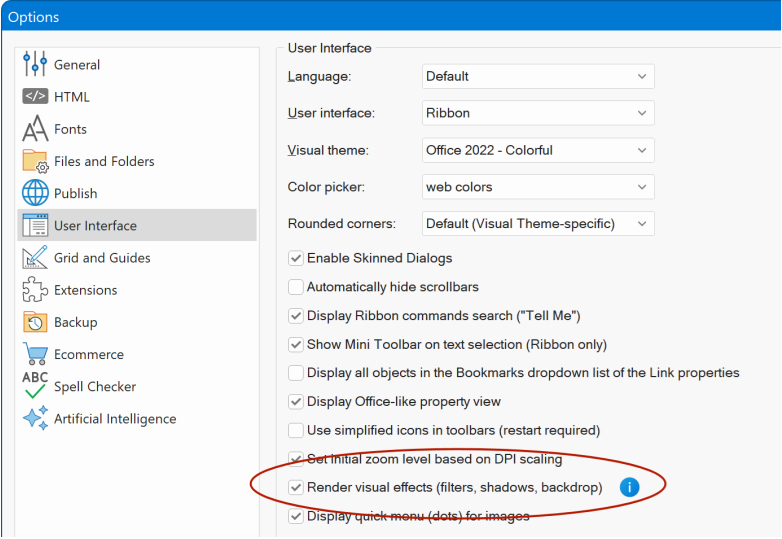
- New feature: Added 'Render visual effects' (filters, shadows, backdrop) in Tools -> Options -> User Interface. This can help to improve performance on slower computers.

Image

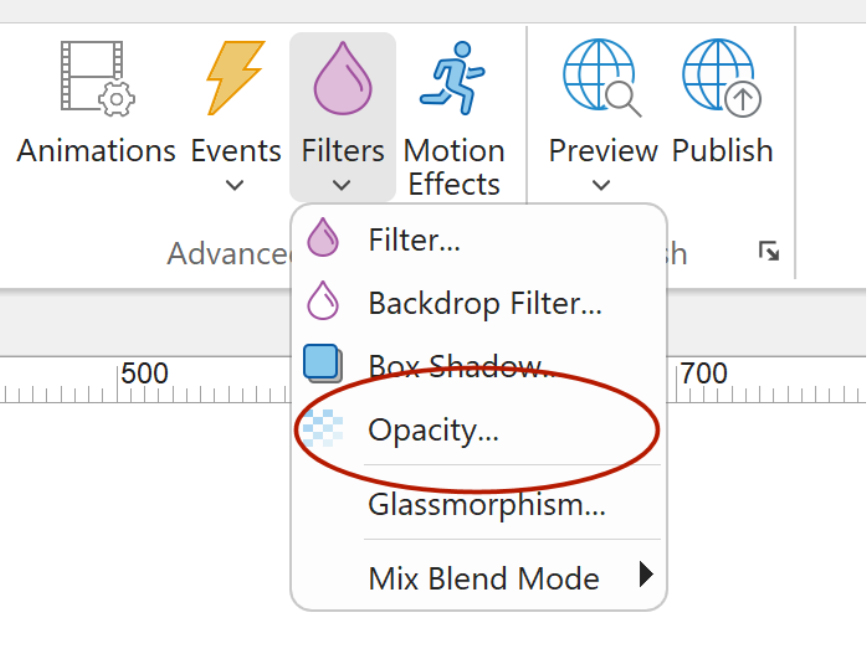
- New feature: Added 'Opacity' properties to Filter menu. This is a quick way to set the opacity / transparency of the selected object.

Image

Image
User avatar
Pablo
 
Posts: 24302
Joined: Sun Mar 28, 2004 12:00 pm
Location: Europe
Contact:

Re: Can You Keep a Secret? (teaser)

Post by Pablo »

Box Shadow

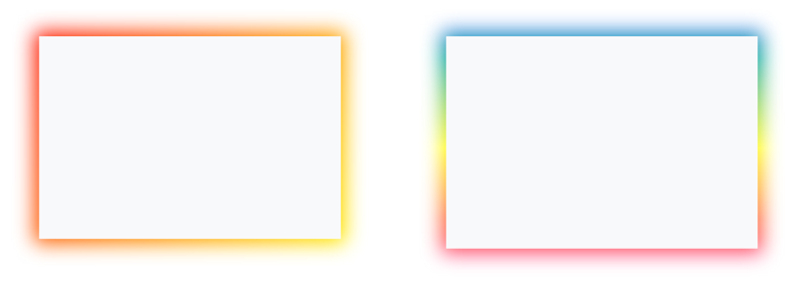
- New feature: Added 2 new box shadow types: Gradient and Multi-color Gradients. Add more color to your layout with fancy gradient shadows. Gradient shadows can also be animated: rotate, pulse, flash, heartbeat and vanish.

Image

Image

Demo
https://www.wysiwygwebbuilder.com/support/wb21tryouts/wb21_boxshadow.html

- New feature: Added 'spread' option to box shadow properties. This option specifies how much the shadow expands or contracts.

Image

Image

This can also be useful to add an extra border around an object.

Image

- New feature: Added 'Box Shadow' option to Filter menu. This is a quick way to set the box shadow of the selected object.

Image

- New feature: Added support for box shadow to File Input, Radio Button, Checkbox, Login/Signup/Change Password/Password Recovery, Rollover Image, Rollover text, Date Picker (inline), RichText Area, Accordion, Tabs, Breadcrumb, Dropdown Menu, Go Menu, Navigation Bar, Pagination, Responsive menu, Site Tree, Table of Contents , Slide Menu, PayPal buttons, CMS label, CMS view
User avatar
Pablo
 
Posts: 24302
Joined: Sun Mar 28, 2004 12:00 pm
Location: Europe
Contact:

Re: Can You Keep a Secret? (teaser)

Post by Pablo »

Creative blending effects with mix-blend-mode

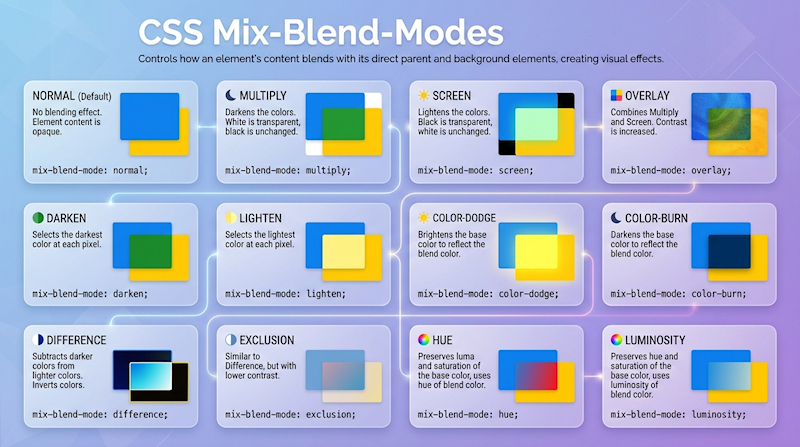
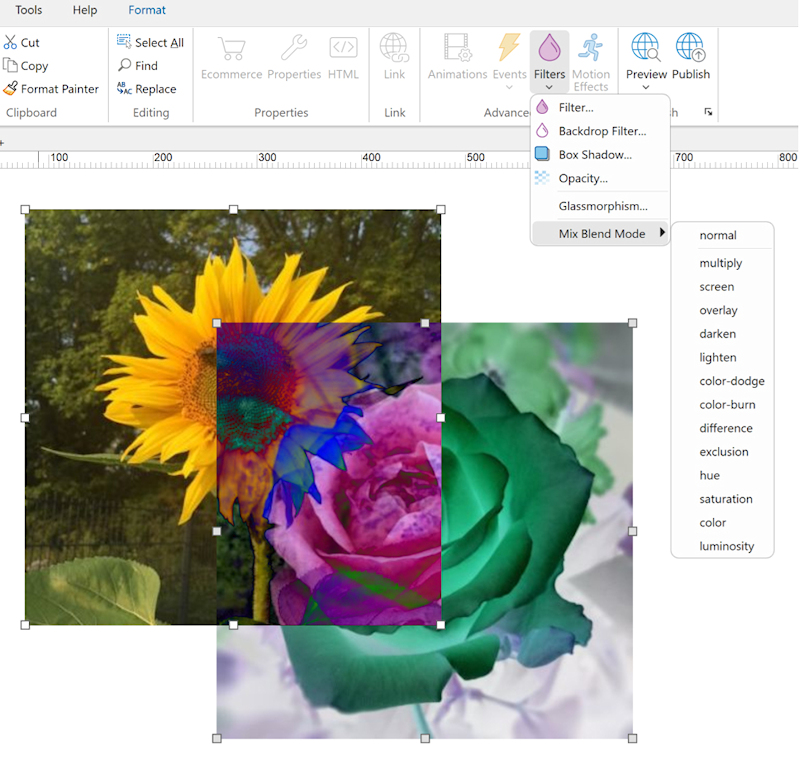
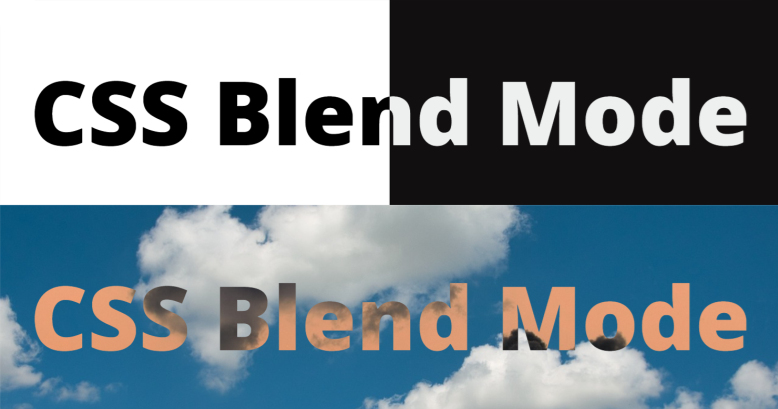
- New feature: Added support for mix-blend-mode. You can now choose how objects visually blend with their background. This makes it easy to create striking effects such as Multiply, Overlay, Difference, or Exclusion — giving your designs a more polished, professional look with just a few clicks. For example, you can use mix-blend-mode to create cutout/knockout text.

Image

Image

Image

Demo
https://www.wysiwygwebbuilder.com/support/wb21tryouts/wb21_mixblend_marquee.html

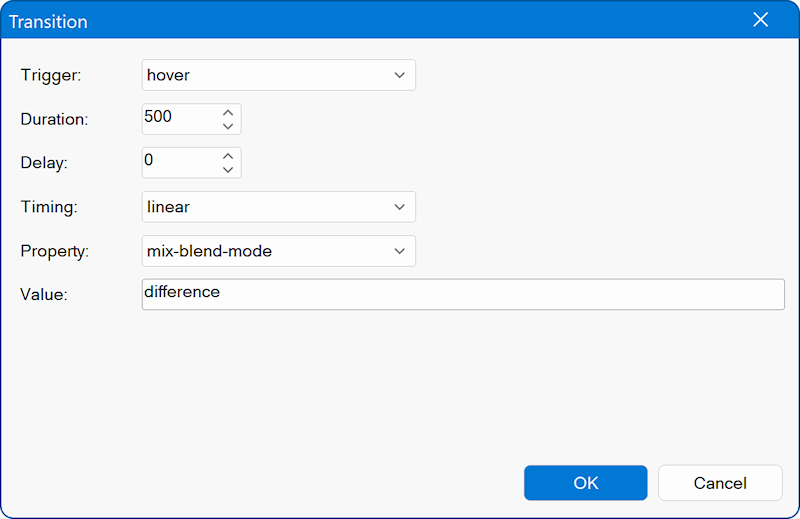
- New feature: Added 'mix-blend-mode' support to transitions and animations. This can be useful, for example, to change the mix-blend-mode on hover.

Image
User avatar
Pablo
 
Posts: 24302
Joined: Sun Mar 28, 2004 12:00 pm
Location: Europe
Contact:

Re: Can You Keep a Secret? (teaser)

Post by Pablo »

Lightbox Gallery

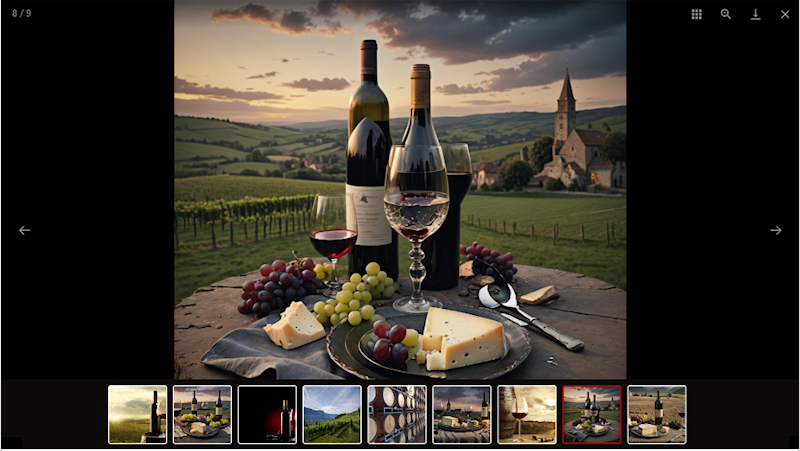
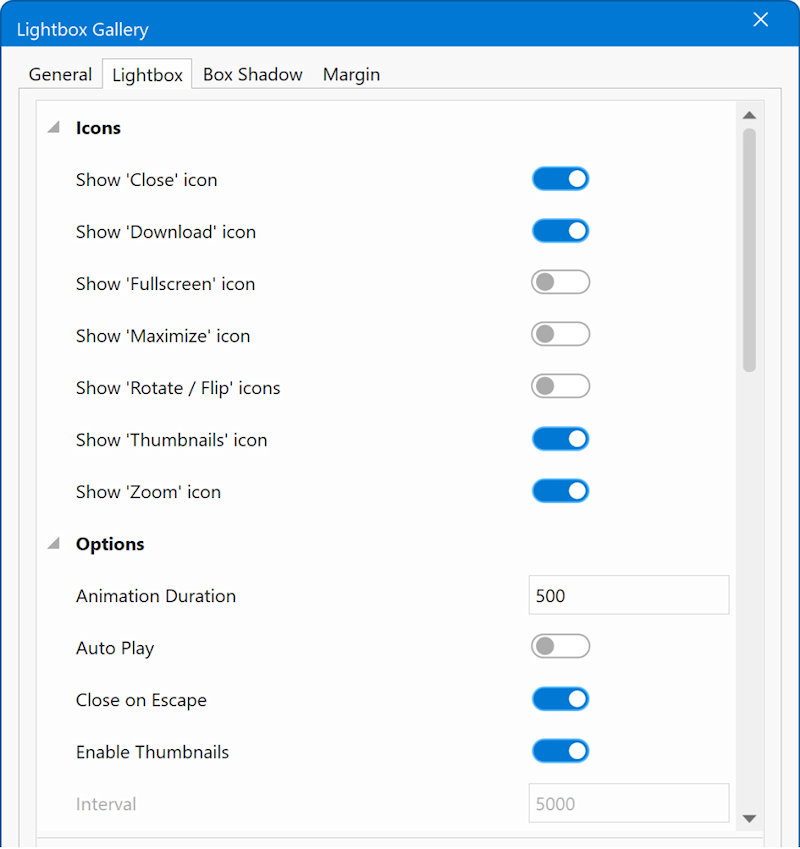
- New feature: Added new 'Lightbox Gallery'. This provides an easy way to implement a fully features lightbox gallery with (optional) thumbnails, download, rotate, auto play, zoom and much more. It also supports video (YouTube, Vimeo, MP4).

Lightbox Gallery support 3 modes:
- thumbnails
- justified
- carousel (inline).
This specifies how the gallery will initially be displayed on the page. Clicking an image will open the lightbox.

Lightbox Gallery is licensed from 'Light Gallery' and WWB includes an extended commercial license, which allows usage on personal and commercial websites.

Image

Demo
https://www.wysiwygwebbuilder.com/support/wb21tryouts/wb21_lightboxgallery.html


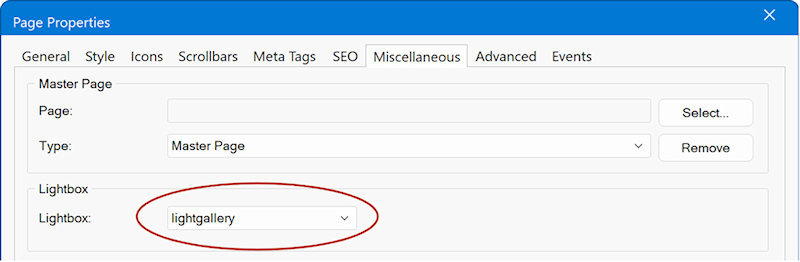
- New feature: Added support for Lightbox gallery in Slideshow. Photo Gallery and Page Properties.
Unlike other lightboxes, when clicking the Settings button it will show the built-in properties instead of the text only input making it easier to adjust properties.

Image

Image
User avatar
Pablo
 
Posts: 24302
Joined: Sun Mar 28, 2004 12:00 pm
Location: Europe
Contact:

Re: Can You Keep a Secret? (teaser)

Post by Pablo »

CSS Lightbox

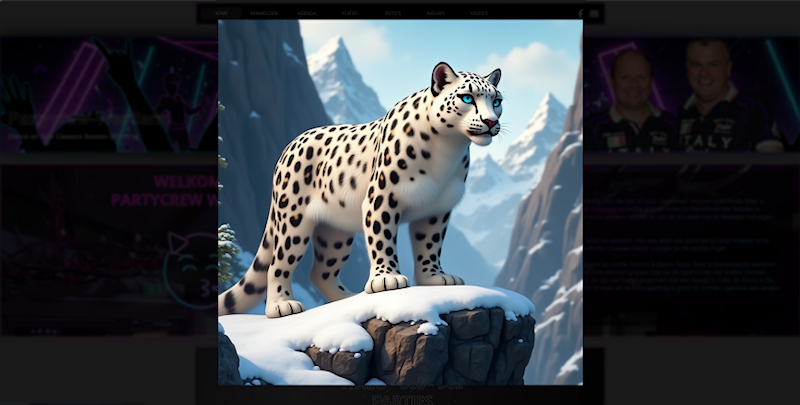
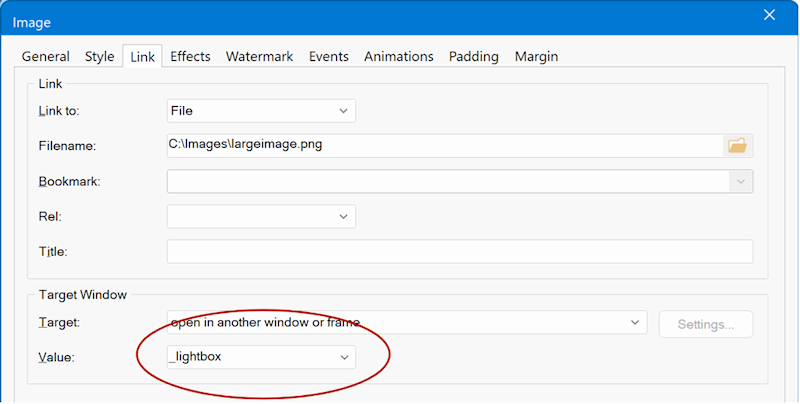
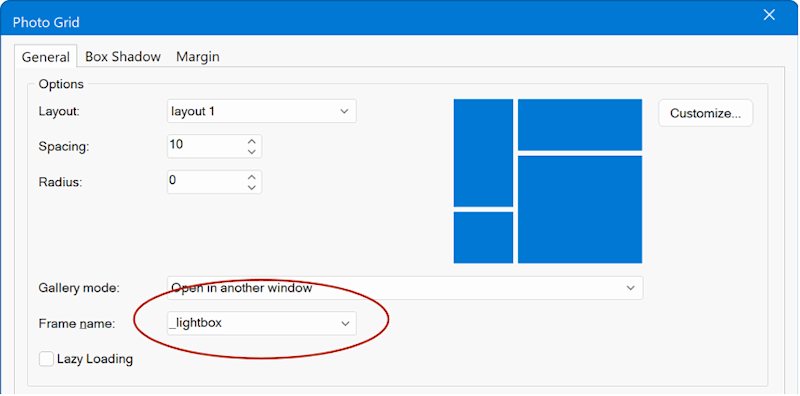
- New feature: Added a new Responsive, pure CSS (no JavaScript) and minimal lightbox. This feature is available for Image, Picture, Photo Collage, Photo Gallery and Photo Grid and it can be set via link target '_lightbox'.

Image

Image

Image

Demo
https://www.wysiwygwebbuilder.com/support/wb21tryouts/wb21_css_lightbox.html
User avatar
Pablo
 
Posts: 24302
Joined: Sun Mar 28, 2004 12:00 pm
Location: Europe
Contact:

Re: Can You Keep a Secret? (teaser)

Post by Pablo »

Slide Show

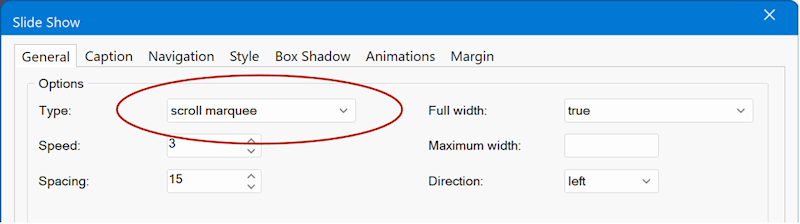
- New feature: Added ‘Scroll Marquee’ slideshow type. The Scroll Marquee creates a horizontal, continuously moving row of images that moves in response to page scrolling instead of playing on a timer. As the user scrolls down the page, the marquee slides left or right, creating a smooth parallax-style effect.

Image

Image

Demo
https://www.wysiwygwebbuilder.com/support/wb21tryouts/wb21_scrollmarquee.html

- New feature: You can now drag and drop images from Windows File Explorer directly on a Slideshow on the workspace to add images

- New feature: You can also drag and drop images into the Slideshow Gallery properties dialog as an alternative to using the 'Add' button.
User avatar
Pablo
 
Posts: 24302
Joined: Sun Mar 28, 2004 12:00 pm
Location: Europe
Contact:

Re: Can You Keep a Secret? (teaser)

Post by Pablo »

Images

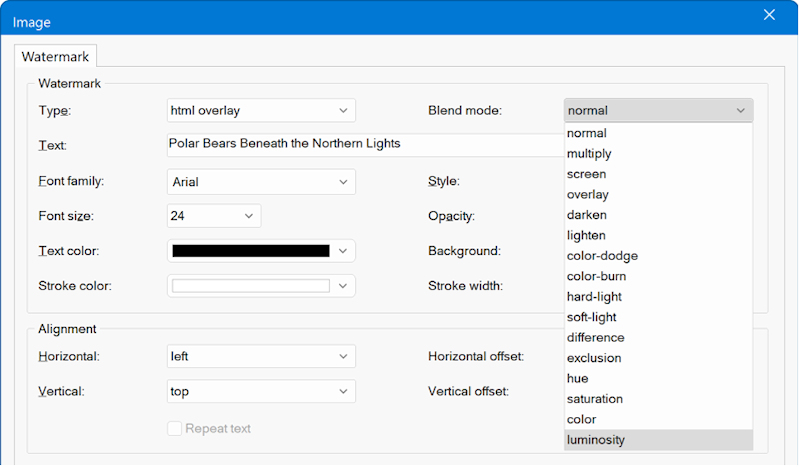
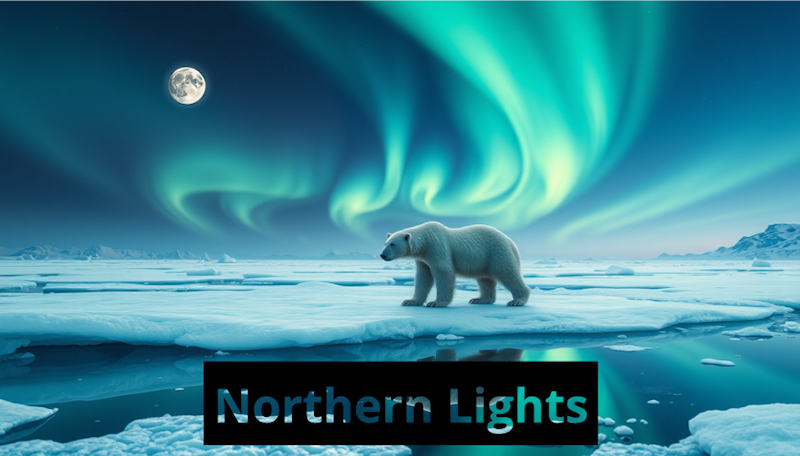
- New feature: Added 'blend mode' to Image Watermark. This controls how the text visually blends with the image. This may be useful for example to create cutout/knockout text or other special effects.

Image

Image

Demo
https://www.wysiwygwebbuilder.com/support/wb21tryouts/wb21_watermark.html

- New feature: You can now drag and drop images from Windows File Explorer on an Image in the workspace to quickly replace it.

Image
User avatar
Pablo
 
Posts: 24302
Joined: Sun Mar 28, 2004 12:00 pm
Location: Europe
Contact:

Re: Can You Keep a Secret? (teaser)

Post by Pablo »

Photo Gallery

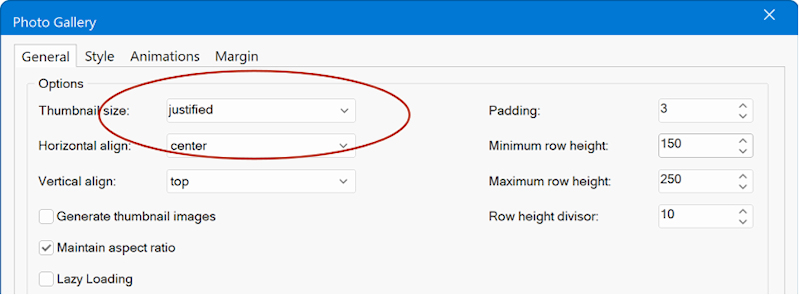
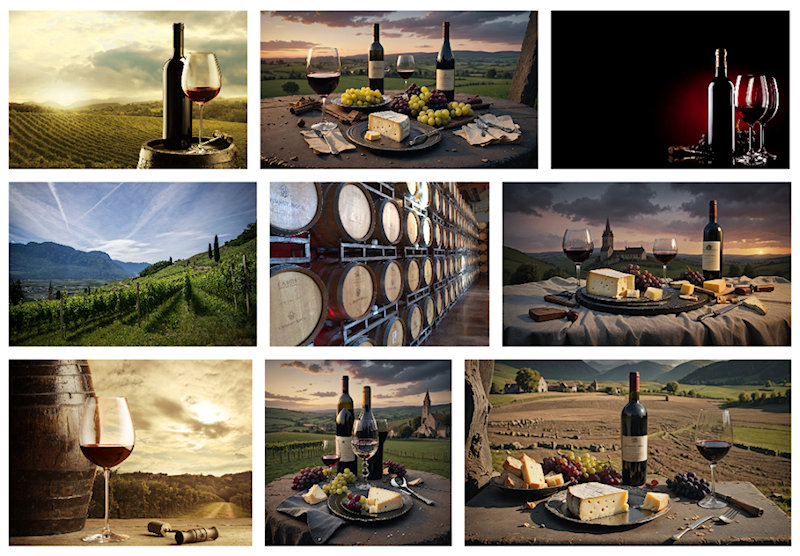
- New feature: Added 'Justified' thumbnail mode. Thumbnails are automatically arranged in rows of equal height, adjusting their widths to create a clean, balanced gallery layout.

Image

Image

Demo
https://www.wysiwygwebbuilder.com/support/wb21tryouts/wb21_justified.html

- New feature: You can now drag and drop images from Windows File Explorer directly on a Photo Gallery on the workspace to add images

- New feature: You can also drag and drop images into the Photo Gallery properties dialog as an alternative to using the 'Add' button.


Photo Grid

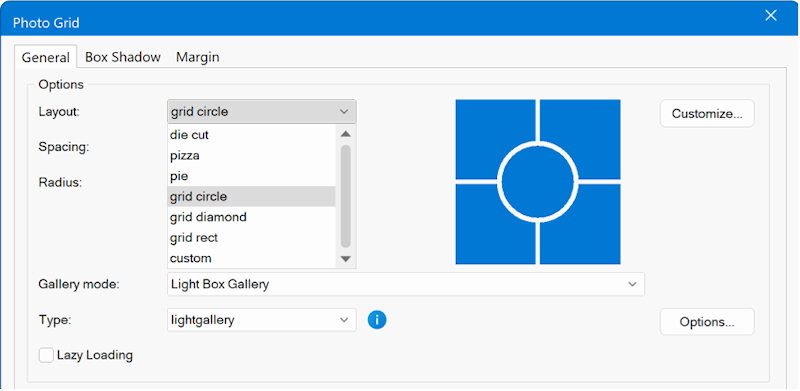
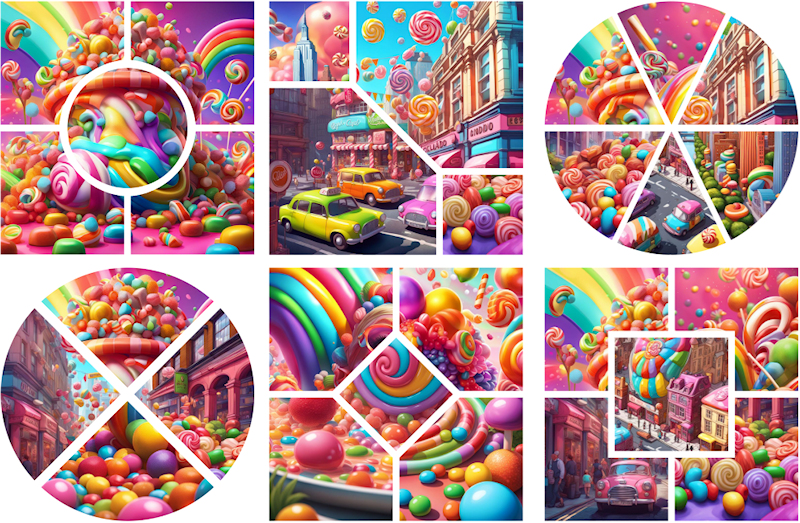
- New feature: Added 6 new special layouts: Die Cut, Pizza, Pie, Grid Circle, Grid Diamond, Grid Rect. This adds even more creative ways to display images.

Image

Image

Demo
https://www.wysiwygwebbuilder.com/support/wb21tryouts/wb21_photogrid.html
User avatar
Pablo
 
Posts: 24302
Joined: Sun Mar 28, 2004 12:00 pm
Location: Europe
Contact:

Re: Can You Keep a Secret? (teaser)

Post by Pablo »

Input Group

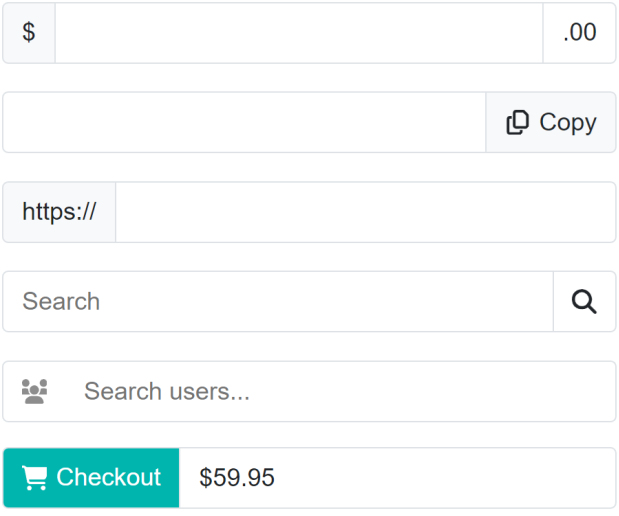
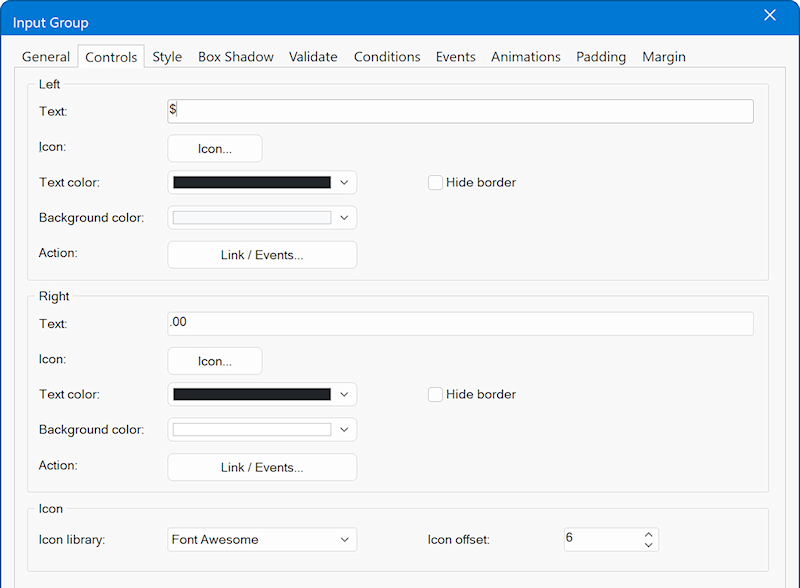
- New feature: Added 'Input Group' object. An Input Group functions like a standard input/edit box but provides additional flexibility. It allows you to place text, icons, or buttons on either side or both sides of the input field.
This can be useful for:
• Adding contextual labels such as $, https://, or kg
• Displaying icons to provide visual cues
• Adding buttons that act as links or trigger actions ( copy, paste, search, etc.)

Image

Image

Demo
https://www.wysiwygwebbuilder.com/support/wb21tryouts/wb21_inputgroup.html
User avatar
Pablo
 
Posts: 24302
Joined: Sun Mar 28, 2004 12:00 pm
Location: Europe
Contact:

Re: Can You Keep a Secret? (teaser)

Post by Pablo »

Select Multi

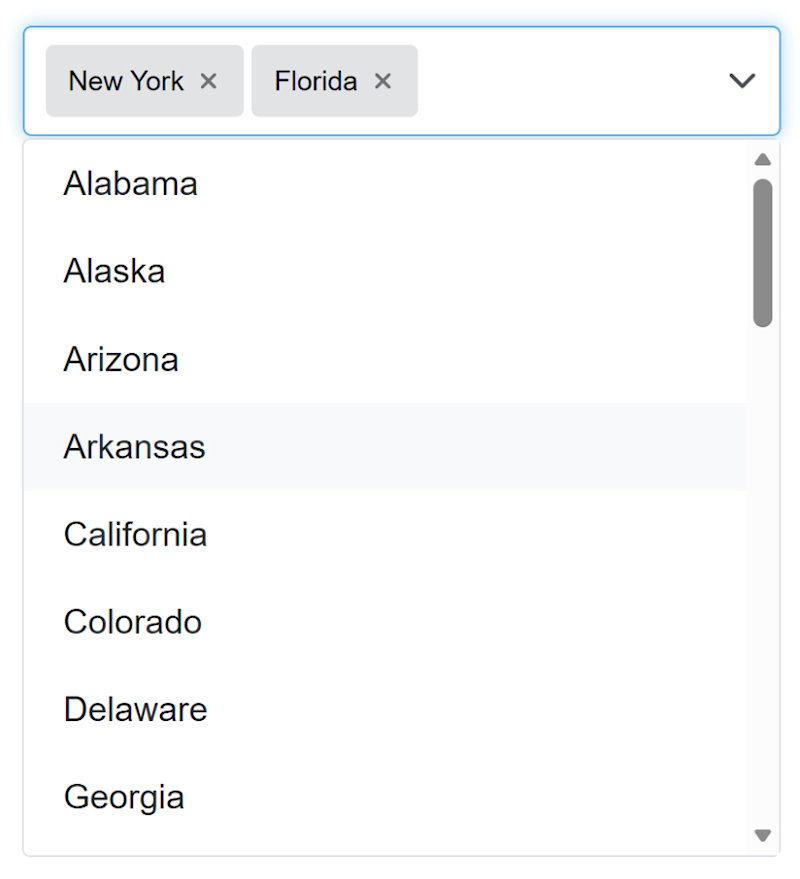
- New feature: Added 'Select Multi' object. A searchable multi-select combobox with removable labels (“chips”), keyboard support, and an optional clear action.
Choose multiple values from a searchable dropdown. Selected items appear as removable labels. Supports keyboard navigation (↑/↓, Enter), Esc to close, and Tab to commit/close.

Image

Optional features include a clear button, max selection limits, “hide selected” in the menu and user additions.

Image

The Select Multi component provides all the standard features of a regular Select control, such as setting the name, title, tab index, placeholder, access key, and managing the list of items (add, edit, remove, import, but also includes enhanced options specifically designed for multi-selection behavior.

Demo
https://www.wysiwygwebbuilder.com/support/wb21tryouts/wb21_selectmulti.html


Select (Combobox)

- Improved: The dropdown arrow style is now standardized across browsers, aligning with the default appearance in Bootstrap 5.x. This improvement also ensures better alignment and behavior when used together with Bootstrap validation icons.

Image

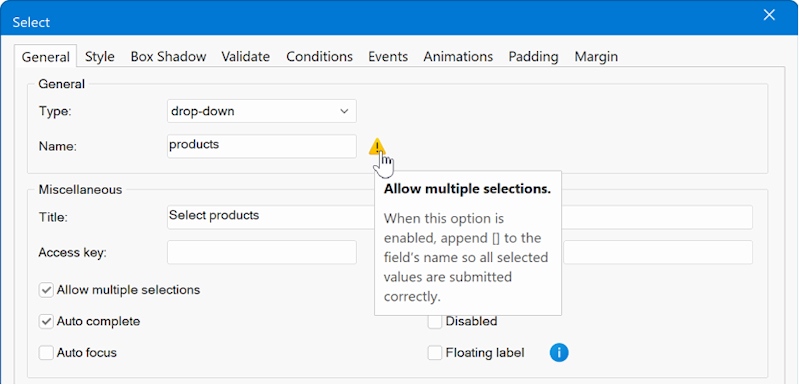
- Improved: When the "Allow multiple selections' option is enabled, an info tip is now displayed to remind the user to append [] to the field’s name so all selected values are submitted correctly.

Image
User avatar
Pablo
 
Posts: 24302
Joined: Sun Mar 28, 2004 12:00 pm
Location: Europe
Contact:

Re: Can You Keep a Secret? (teaser)

Post by Pablo »

Form Validation

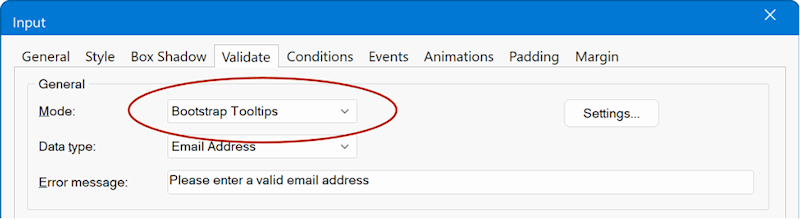
- New feature: Added new validation mode called “Bootstrap Tooltips”. Instead of displaying standard inline Bootstrap validation messages, this mode shows tooltips positioned beneath the input fields. These tooltips are absolutely positioned, ensuring they don’t disrupt or shift the surrounding layout.

Image

Image

Demo
https://www.wysiwygwebbuilder.com/support/wb21tryouts/wb21_formvalidation.html


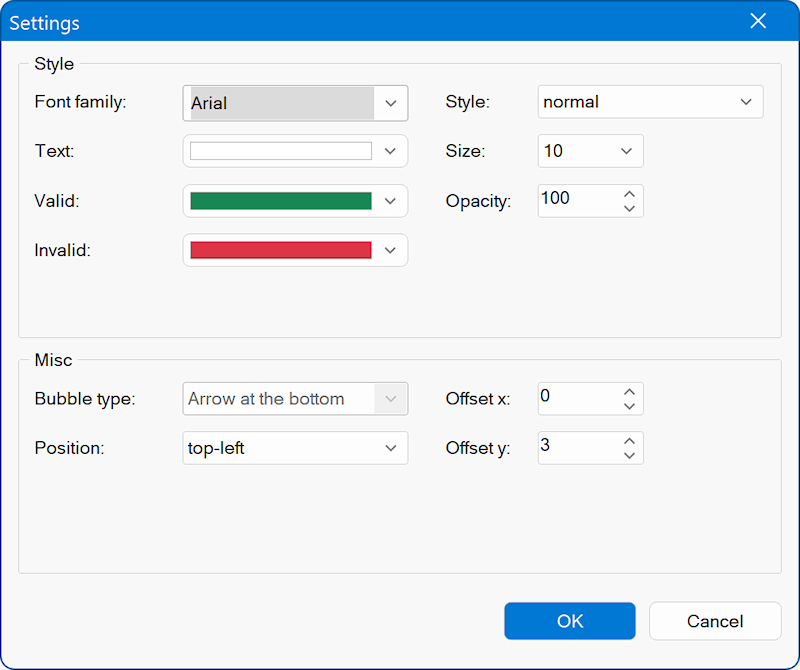
- New feature: Added the ability to configure the style of Bootstrap validation like font-size, colors, offset. Previously this style could not be changed.

Image


- Improved: The Bootstrap validation has been updated to the latest version with updated icons. Also, unlike previous versions it can now be used in combination with different background modes (image, gradients, etc.).

Image
User avatar
Pablo
 
Posts: 24302
Joined: Sun Mar 28, 2004 12:00 pm
Location: Europe
Contact:

Re: Can You Keep a Secret? (teaser)

Post by Pablo »

Publish

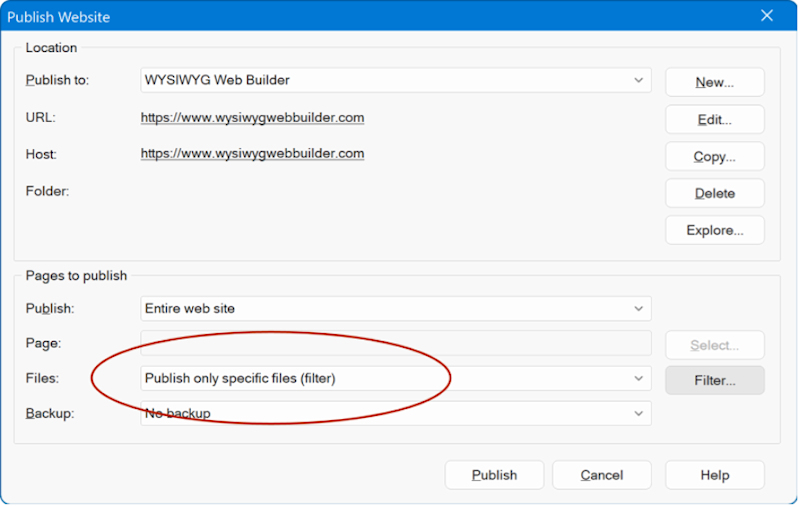
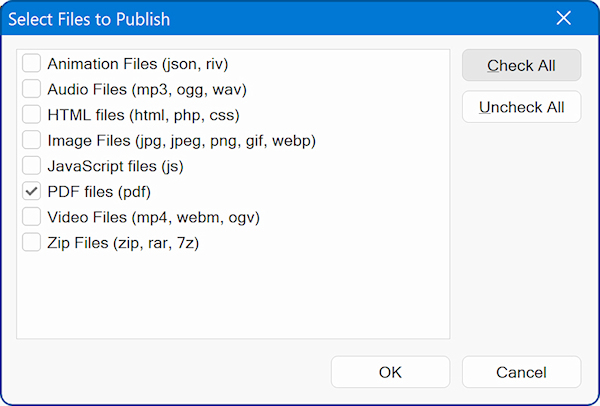
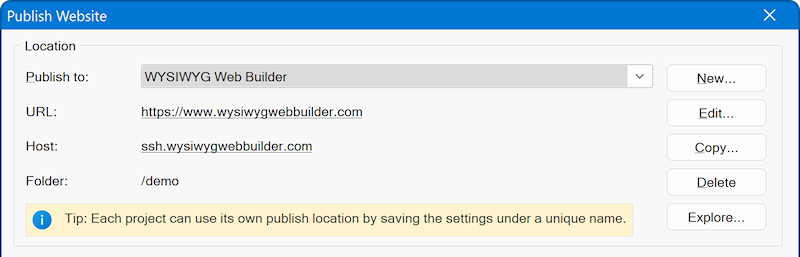
- New feature: Added 'Publish only specific files' option to publish window. This option can be used to publish only specific file types, like images, video, zip files etc. You can select one of more files type via the 'Filter' button.

Image

Image

- Improved: Added a tip in Publish Settings explaining that users can create different publish locations per project.

Image
User avatar
Pablo
 
Posts: 24302
Joined: Sun Mar 28, 2004 12:00 pm
Location: Europe
Contact:

Re: Can You Keep a Secret? (teaser)

Post by Pablo »

Overpaste Links

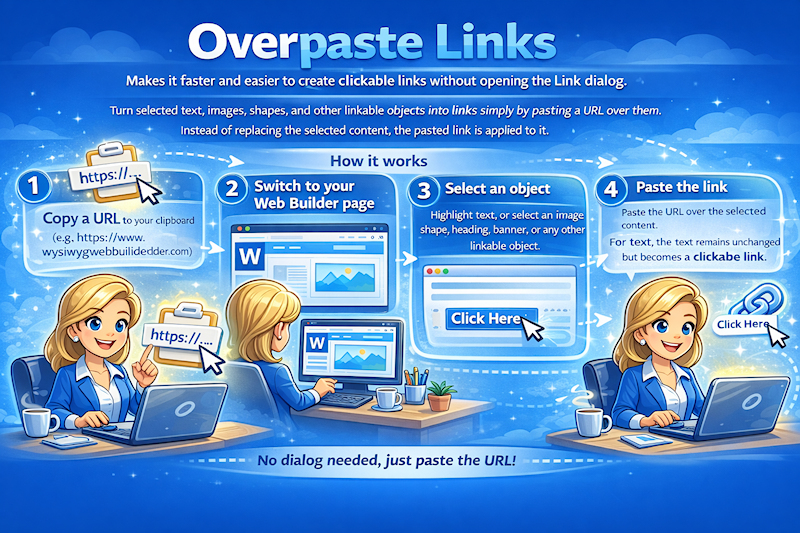
- New feature: Added support for overpaste links, making it faster and easier to create clickable links without opening the Link dialog.

With this feature, you can turn selected text, images, shapes, and other linkable objects into links simply by pasting a URL over them. Instead of replacing the selected content, the pasted link is applied to it.

How it works

1. Copy a link
Copy a URL from your browser or any other application to the clipboard
(for example: https://www.wysiwygwebbuilder.com)

2. Switch to your Web Builder page

3. Select an object
Highlight text, or select an image, shape, heading, banner, or any other linkable object.

4. Paste the link
Paste the URL over the selected content.

For text, the text remains unchanged but becomes a clickable link.
For other objects, the link is applied directly to the selection.

Note
If nothing is selected, pasting a link behaves as before: the URL is inserted as plain text.

Image
User avatar
Pablo
 
Posts: 24302
Joined: Sun Mar 28, 2004 12:00 pm
Location: Europe
Contact:

Re: Can You Keep a Secret? (teaser)

Post by Pablo »

Layer Menu

We’ve added many new options to the Layer Menu, giving you the flexibility to create mobile-friendly, mixed-content menus. With these improvements, the Layer Menu is now even more powerful for building custom mega menus.

Demo
https://www.wysiwygwebbuilder.com/support/wb21tryouts/wb21_layermenu_accordion.html

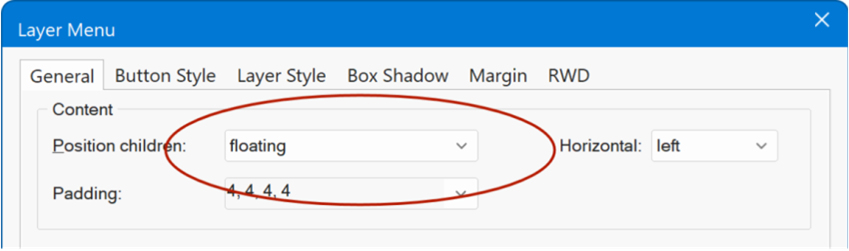
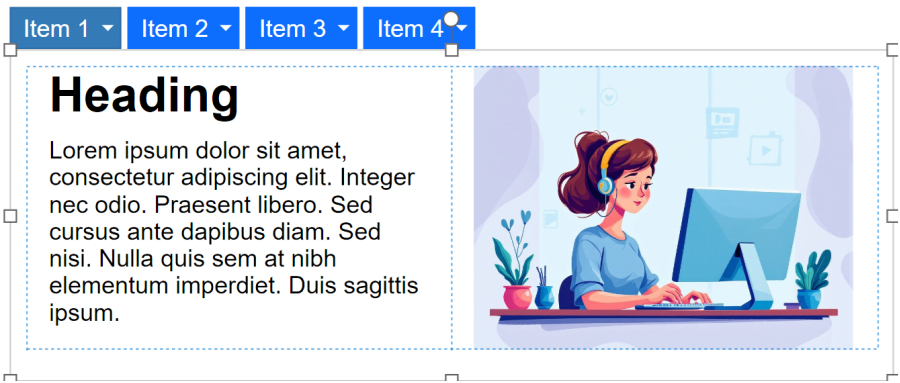
- New feature: You can now add floating and flexible content to layers of the menu, with support for padding and alignment options.

Image

Image

Additionally, you can place a layout grid on the menu layers—making it easy to create clean, multi-column designs.

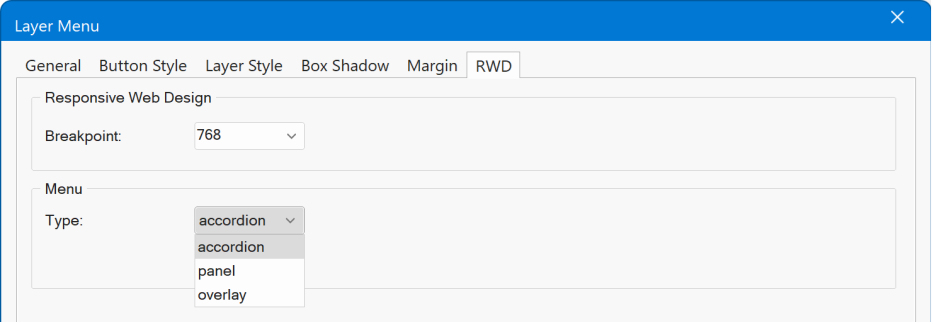
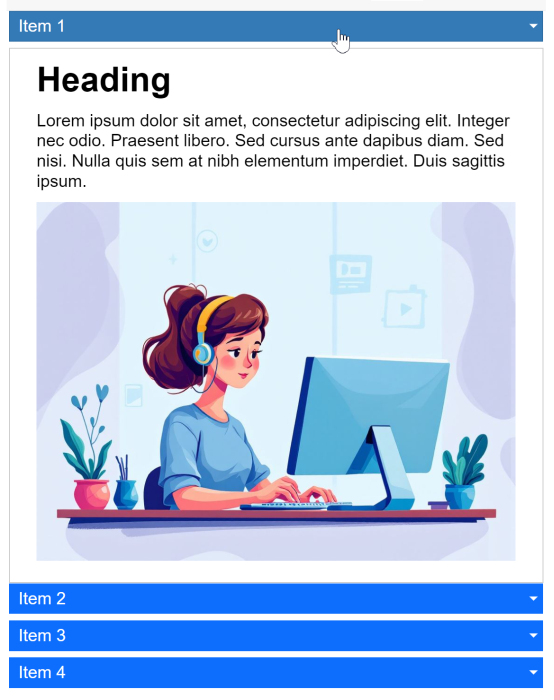
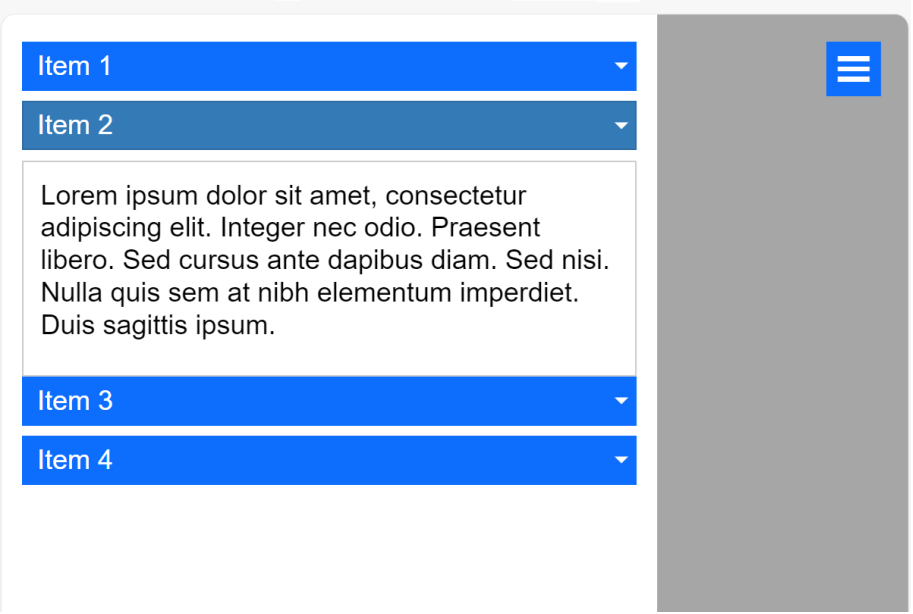
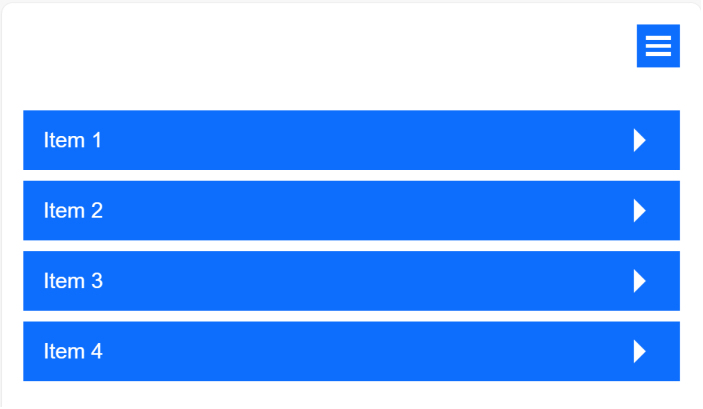
- New feature: Added the new option to make the layer menu responsive. The new 'breakpoint' property controls how the menu will be displayed on mobile devices: Accordion, Panel or Overlay.

Image

Accordion, displays the layers in a stacked, accordion like layout.

Image

Panel, display a slide out panel at the left side of the browser window.

Image

Overlay, displays an overlay menu covering the full page with ‘drill down’ layers

Image

When expanded, the layer will display an arrow icon to go back to the menu list.

Image

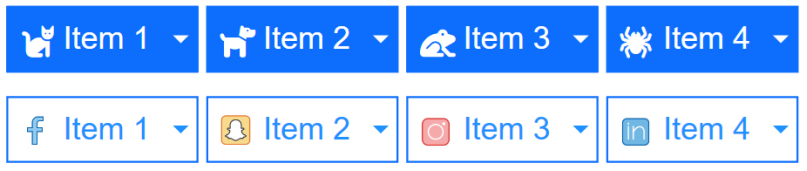
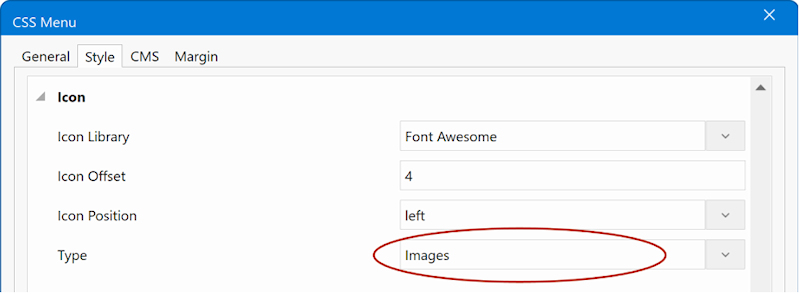
- New feature: Added the ability to add icons or custom images to menu items. With icon libraries and icon offset options.

Image

- New feature: Added the ability to set the vertical spacing between the button and drop-down layer.

- New feature: Added 'Animation duration' and 'Animation easing' properties to give you more control over the animation.

- New feature: You can now control how the menu is positioned inside its container. The new “Menu Alignment” setting lets you choose from: Left, Center and Right.

- Improved: Removed jQuery dependency from generated scripts; output is now pure vanilla JavaScript.
User avatar
Pablo
 
Posts: 24302
Joined: Sun Mar 28, 2004 12:00 pm
Location: Europe
Contact:

Re: Can You Keep a Secret? (teaser)

Post by Pablo »

Navigation
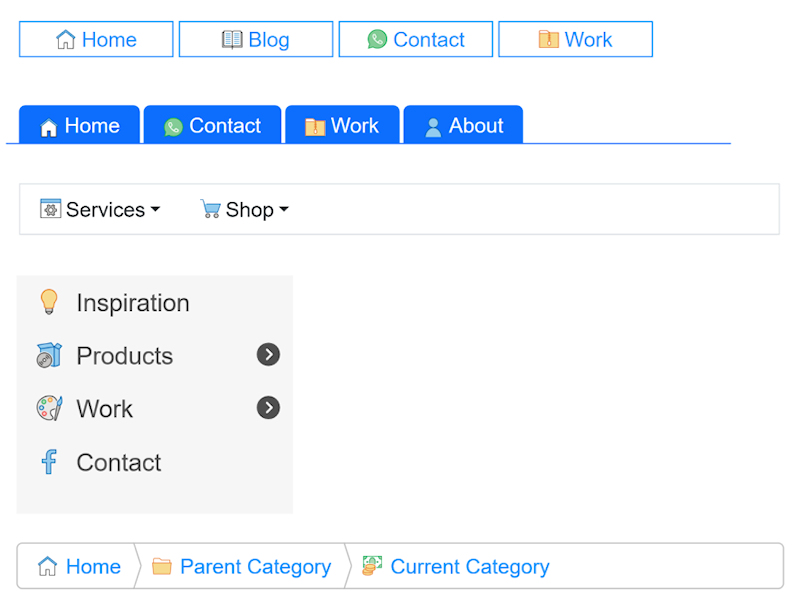
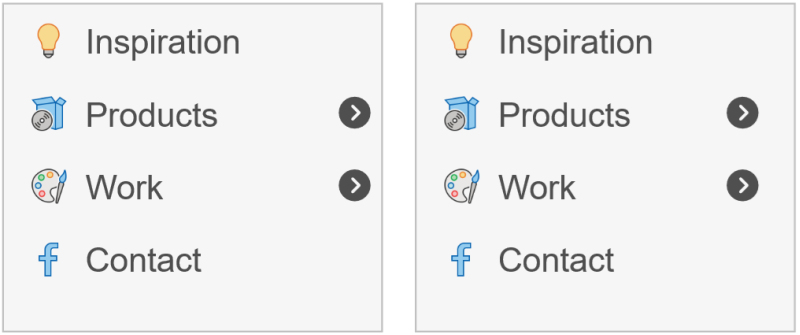
- New feature: Added support for images to many navigation widgets. You can now use custom images—alongside icons—for menu items in navigation widgets. This gives you more flexibility to create visually rich and colorful pages that better reflect your brand or design style.

Image

Image

Demo
https://www.wysiwygwebbuilder.com/support/wb21tryouts/wb21_navicons.html


Dropdown Menu, Layer Menu, Overlay Menu
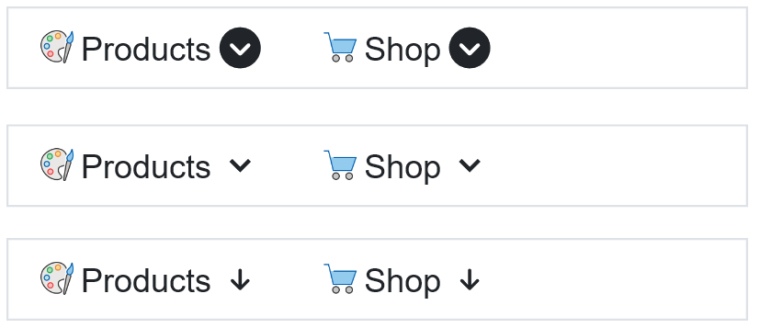
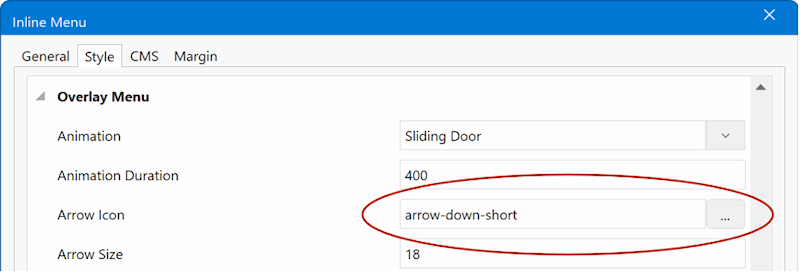
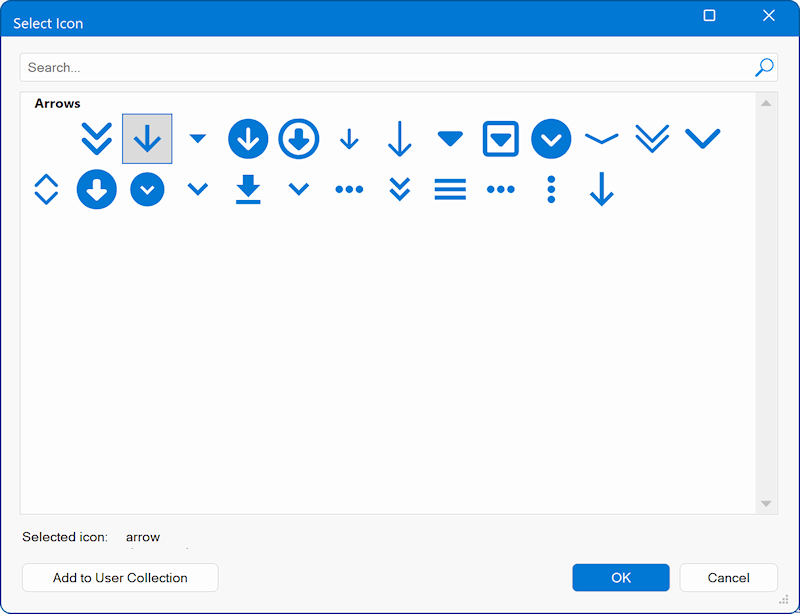
- New feature: Added the ability to change the style of the drop-down arrow. You can now select from 25 different arrow types!

Image

Image

Image


Demo
https://www.wysiwygwebbuilder.com/support/wb21tryouts/wb21_dropdown_arrow.html

- New feature: Added the ability to change the size of the drop-down arrow.


CSS Menu
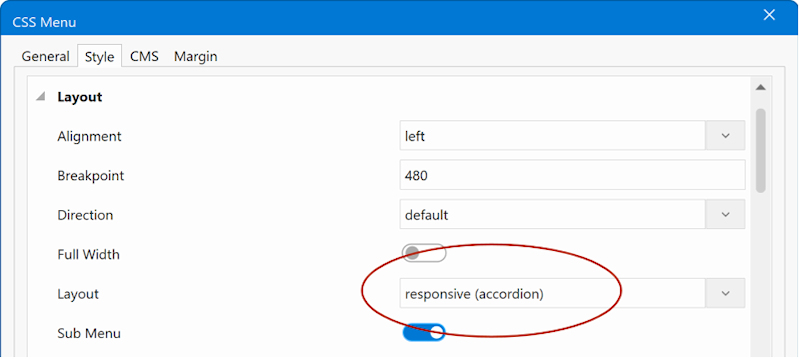
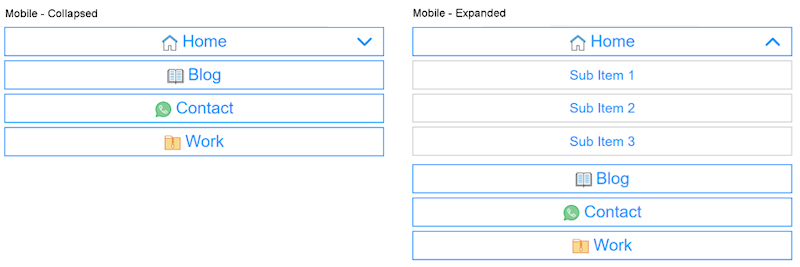
- New feature: Added “responsive-accordion” mode: the menu is horizontal on desktop and becomes a vertical, expandable (accordion) list on mobile, switching at the screen size you set with the breakpoint property.

Image

Image

Demo
https://www.wysiwygwebbuilder.com/support/wb21tryouts/wb21_cssmenu_accordion.html


Navigation Bar
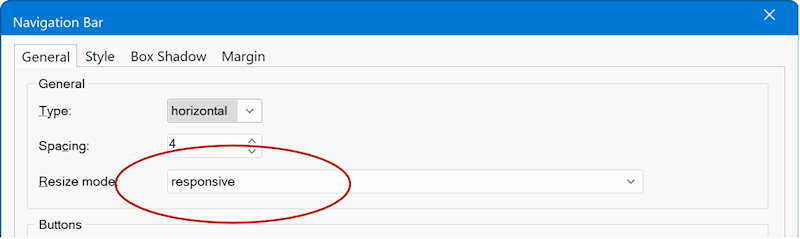
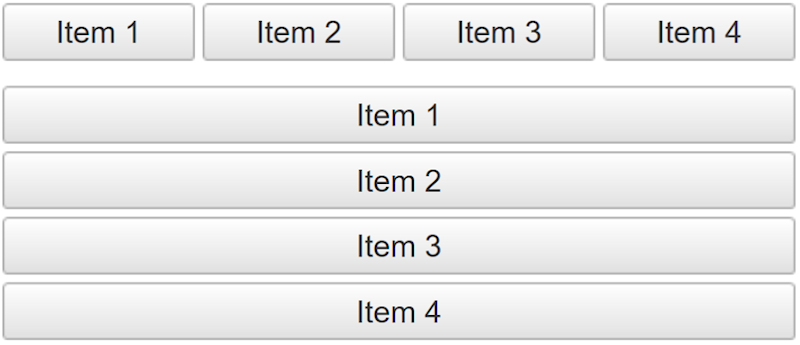
- New feature: Added “responsive” button mode. The menu now adapts automatically: it displays horizontally on desktop and switches to a vertical list on mobile, using the breakpoint you set.

Image

In responsive mode, the menu is rendered as a single image instead of individual button images. This reduces page load size and produces cleaner markups.
Also, in that case all transitions are now powered by CSS, with no JavaScript required.

Image

Demo
https://www.wysiwygwebbuilder.com/support/wb21tryouts/wb21_navbar_responsive.html

- New feature: Added 'full width' property. The menu can now stretch to fill the full width of its container. Buttons automatically resize to fit evenly across the available space.


Tab Menu
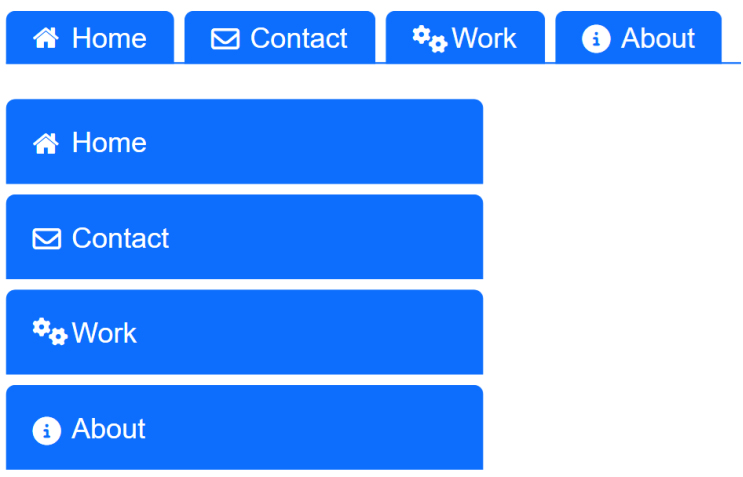
- New feature: Added the ability to add icons or images to tab items.

Image

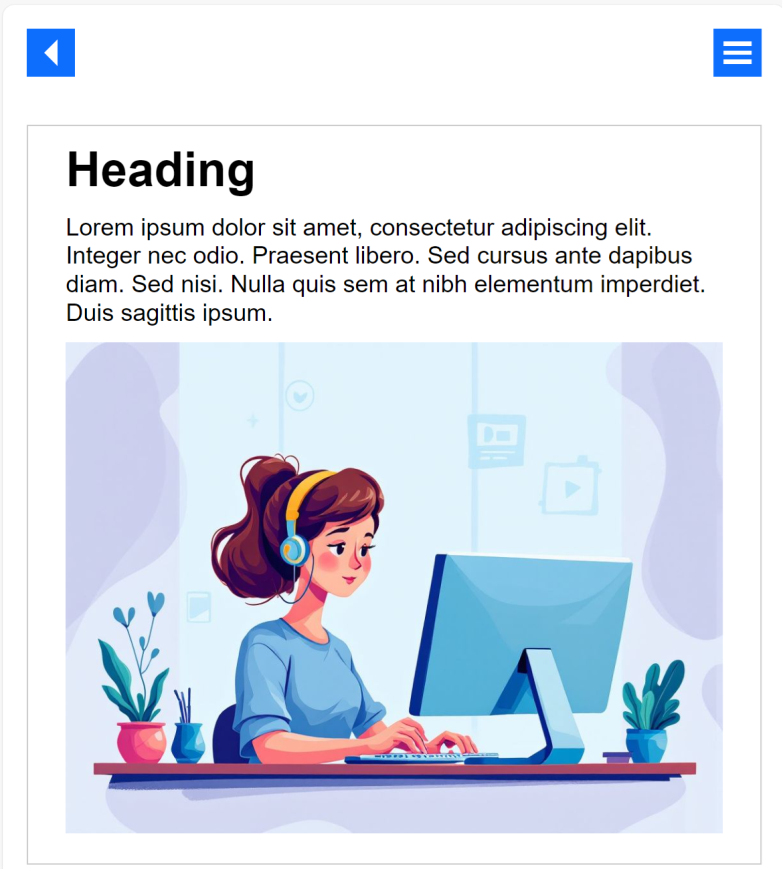
- New feature: Added support for responsive padding for tab items. Also, the padding can now be set via the generic Padding properties.

Image

Demo
https://www.wysiwygwebbuilder.com/support/wb21tryouts/wb21_tabmenu.html


Overlay Menu
- New feature: Added 'arrow offset' property to set the offset from edge. Previously this was a fixed value, so now you have more control.

Image

Demo
https://www.wysiwygwebbuilder.com/support/wb21tryouts/wb21_nav_iconoffset.html


Inline Menu
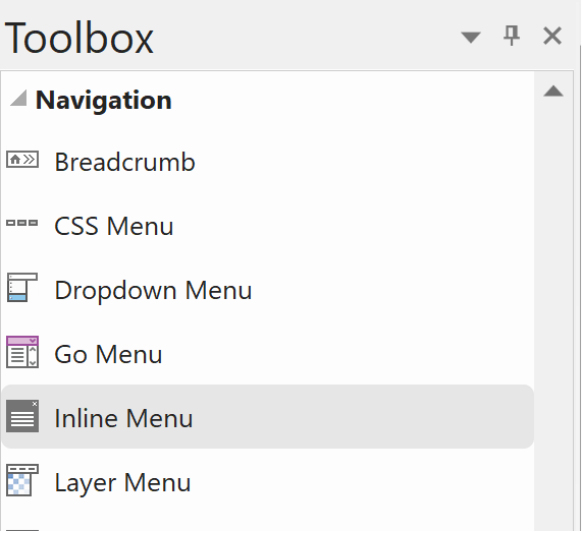
- New feature: The Overlay Menu’s Inline mode now has its own dedicated icon in the Toolbox and Insert menu. You can find it under “Inline Menu”, making this feature easier to discover and use, especially since it was often overlooked before.

Image
User avatar
Pablo
 
Posts: 24302
Joined: Sun Mar 28, 2004 12:00 pm
Location: Europe
Contact:

Re: Can You Keep a Secret? (teaser)

Post by Pablo »

Rive Animations
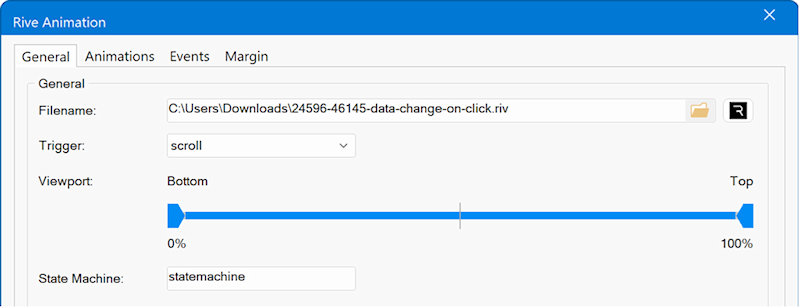
- New feature: Added a new “Rive Animations” object that lets you easily integrate real-time, interactive Rive animations into your projects.

Image

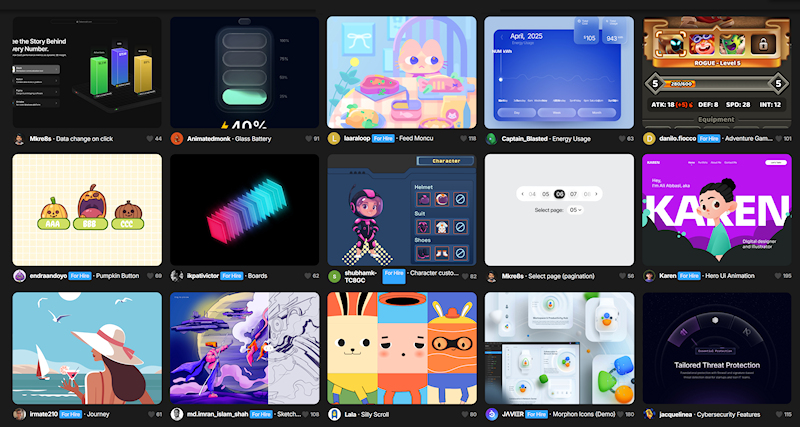
A Rive animation is an interactive, vector-based animation created with the Rive design tool. Unlike traditional animations, Rive lets designers build real-time, responsive animations that can react to user input (like clicks, taps, or game logic). They’re lightweight, can run in apps, games, or on the web, and are often used for UI animations, icons, characters, and interactive effects.

Rive is often viewed as the spiritual successor to Flash, but built for a far more dynamic and modern workflow. While Rive and Lottie share similar goals, they differ in capability — Lottie plays pre-rendered motion graphics, whereas Rive uses a real-time animation engine that enables interactive, state-driven animations that respond to user input and app logic.
Image

Animations can be triggered on page load, hover, click, scroll, or through events.
A huge selection of Rive animations can be found here:
https://rive.app/marketplace/

You can also create your own animations with Rive Editor: https://rive.app/editor
User avatar
Pablo
 
Posts: 24302
Joined: Sun Mar 28, 2004 12:00 pm
Location: Europe
Contact:

Re: Can You Keep a Secret? (teaser)

Post by Pablo »

Animated Headline
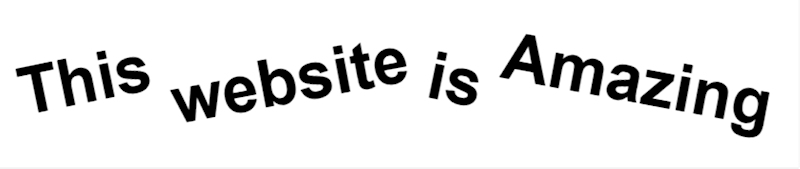
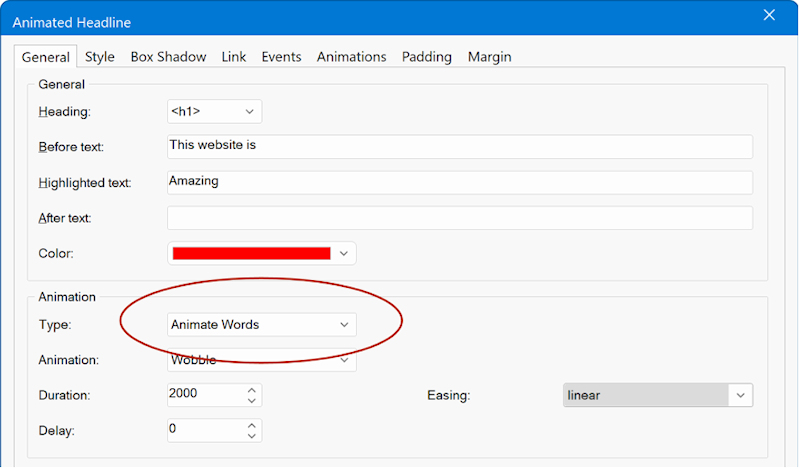
- New feature: Added an option to animate complete words in addition to single letters. Word animations work great for headlines, taglines, and phrases where you want each word to appear or move together.

Image

Image


Demo
https://www.wysiwygwebbuilder.com/support/wb21tryouts/wb21_animate.html


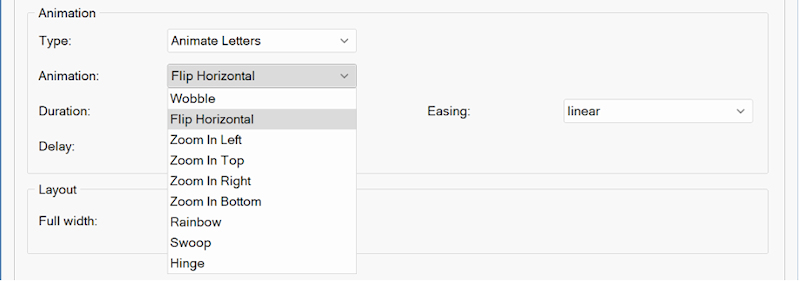
- New feature: Added new text animations: Flip Horizontal, Zoom In Left, Zoom In Top, Zoom In Right, Zoom In Bottom, Rainbow, Swoop, Hinge

Image

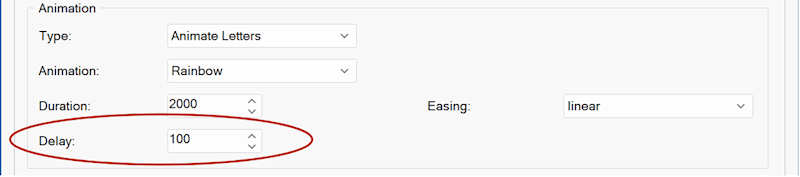
- New feature: Added 'Delay' property to Animate Letters/Words. This specifies the pause between animation cycles.

Image
User avatar
Pablo
 
Posts: 24302
Joined: Sun Mar 28, 2004 12:00 pm
Location: Europe
Contact:

Re: Can You Keep a Secret? (teaser)

Post by Pablo »

Fonts
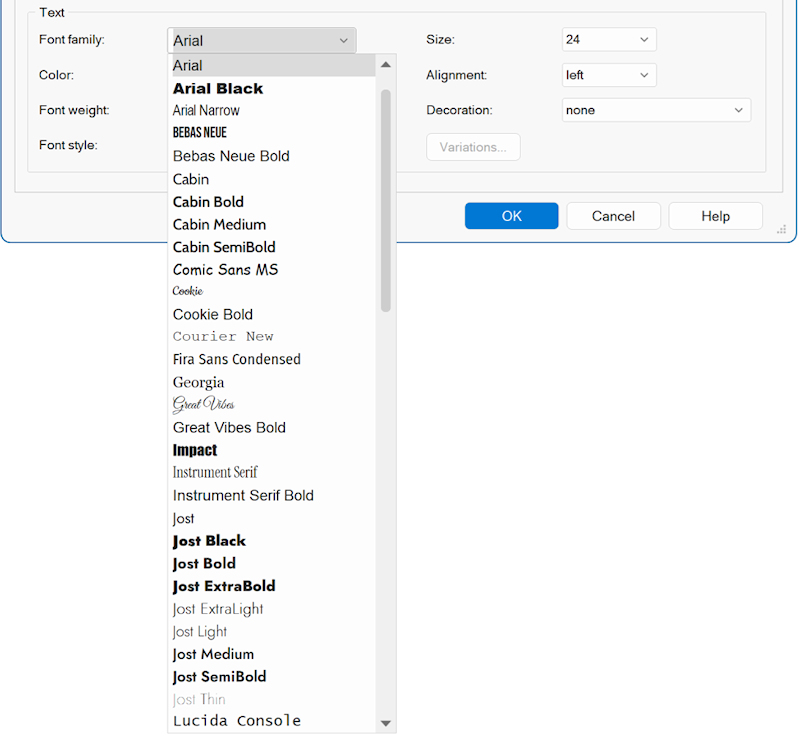
- New feature: The font combo box items are now drawn using their respective fonts. For example, if the combo box lists "Arial," "Times New Roman," etc., each item will be displayed in its corresponding font style.

Image


Find and Replace
- New feature: Many text input fields now have 'Find' and 'Replace' support via the context menu. To quickly find or replace text.

Image


Mouse Panning
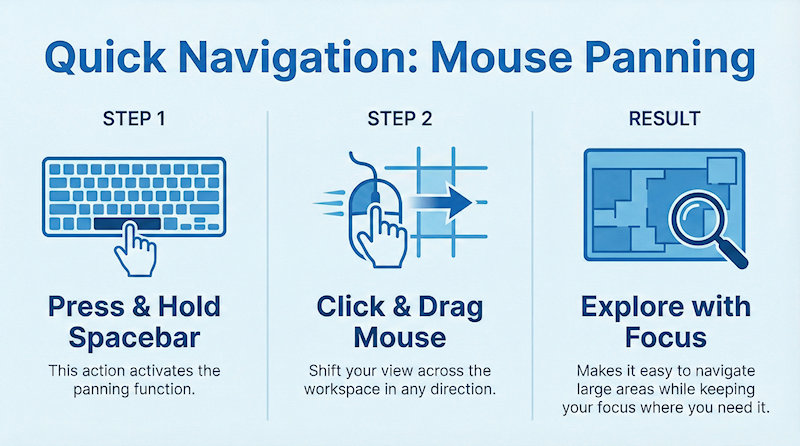
- New feature: Added support for mouse panning. Mouse Panning lets you quickly move around the workspace without changing tools or zooming in and out. By holding the Spacebar and dragging with the mouse, you can shift your view in any direction, making it easy to explore large or detailed areas and keep your focus where you need it.

Image


Margin / Padding
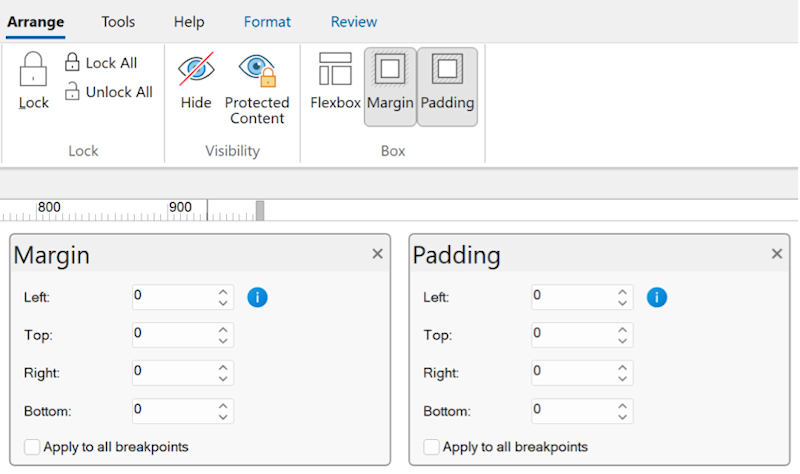
- New feature: You can now keep the Margin and Padding panels open all the time. This lets you adjust margins and padding quickly without reopening the dialog each time. The panels can either float freely or be docked to any side of your screen for easy access.

Image

When used in combination with Cards or Layout Grids, then the padding properties show / update the values of the current active item.

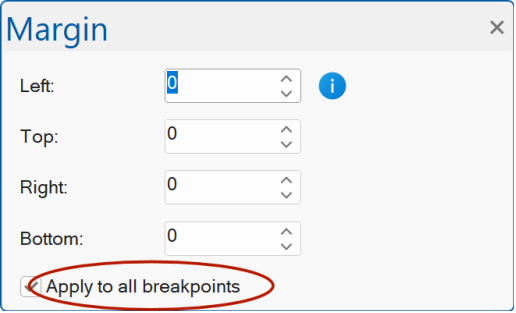
- New feature: A new “Apply to all breakpoints” option has been added. When this option is turned on, any margin or padding changes you make will be applied to all breakpoints. When it’s turned off, the changes will only affect the current breakpoint.

Image


Manage extensions per project
- New feature: Added new feature 'Manage extensions per project'. You can now maintain a separate set of extensions for each project instead of using a single global list.
This option can be enabled via Tools -> Options -> Extensions.

Image


Language Modules
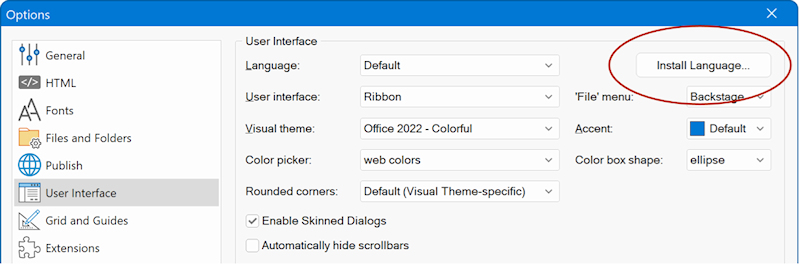
- New feature: Added 'Install Language' in Tools -> User Interface. This can be used to install a new display language.
So, you no longer have to manually download and unzip the files to the program files folder.

Image

Image

- New feature: During startup, the software verifies whether the installed language module matches the required version. If it does not, the software will prompt the user to automatically download and install the latest version.

Image
User avatar
Pablo
 
Posts: 24302
Joined: Sun Mar 28, 2004 12:00 pm
Location: Europe
Contact:

Re: Can You Keep a Secret? (teaser)

Post by Pablo »

Join us again Monday for even more exciting feature reveals.

Coming up:
Layout tools, Badges, Cards, Icons, HTML object, Site Variables, Icons, Shopping Cart, File Publisher, AI and more!
Locked