Can You Keep a Secret? (teaser)

All the latest news about WYSIWYG Web Builder can be read in this section

*** The current version is: WYSIWYG Web Builder 20.4.2 ***


Locked
User avatar
Pablo
 
Posts: 24268
Joined: Sun Mar 28, 2004 12:00 pm
Location: Europe
Contact:

Can You Keep a Secret? (teaser)

Post by Pablo »

Welcome to the Feature Reveal of WYSIWYG Web Builder 21!

We’re excited to give you an exclusive first look at the next major version of WYSIWYG Web Builder.

Over the coming weeks, we’ll be unveiling brand-new features, improvements, and enhancements that make version 21 our most powerful release yet.
This topic will be updated daily (on working days), so be sure to check back regularly, you won’t want to miss what’s coming next!

The official release date is still to be announced, but we’ll share more details as soon as they’re confirmed.

🎉 Special Launch Offer
Purchase Version 20 today and receive Version 21 FREE as soon as it becomes available.
As always, this offer also applies to all licenses purchased within 60 days prior to the official release date.

New to WYSIWYG Web Builder?
For a limited time, new users can enjoy an exclusive 25% discount — pay just $44.95 instead of the regular price of $59.95.

There’s never been a better time to get started:
https://www.wysiwygwebbuilder.com/purchase.html

Stay tuned… exciting things are on the way. 🚀

Image
User avatar
Pablo
 
Posts: 24268
Joined: Sun Mar 28, 2004 12:00 pm
Location: Europe
Contact:

Re: Can You Keep a Secret? (teaser)

Post by Pablo »

Easy Breakpoints

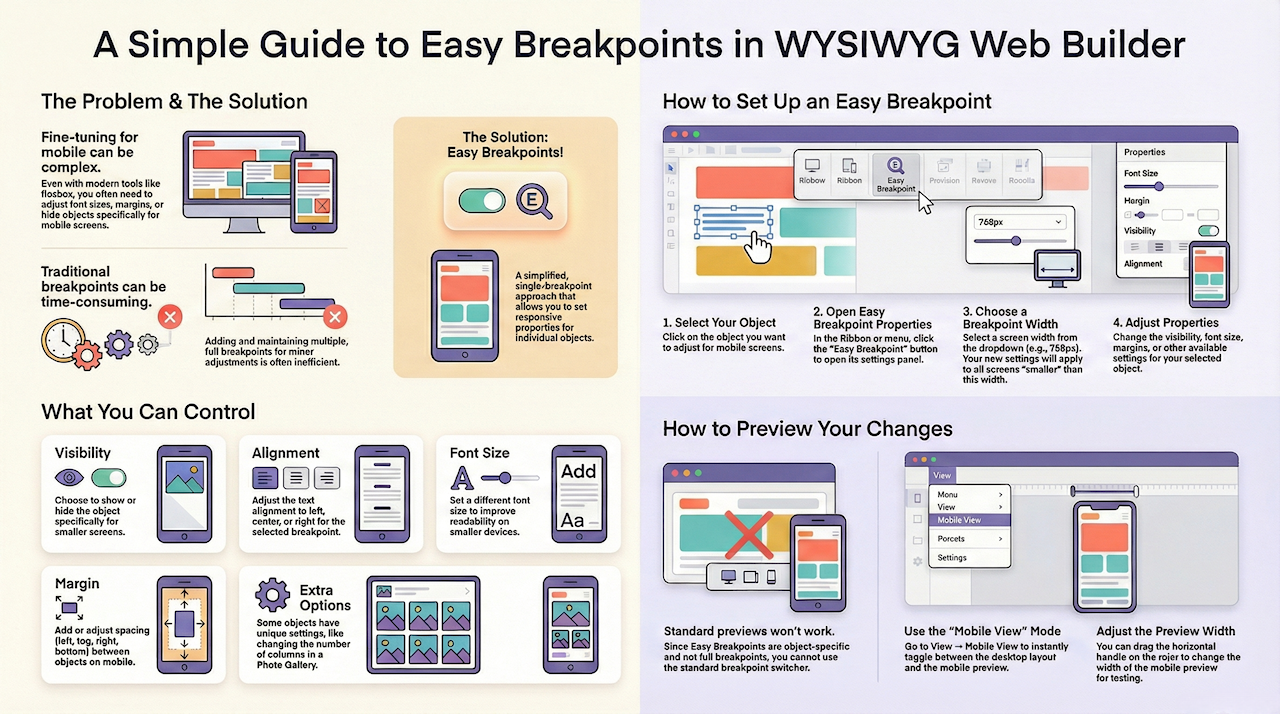
Sometimes, when you want to make a web layout responsive / mobile friendly all you really want is to hide or show specific object, change the font size or use a different margin. In that case, adding breakpoints for the entire page may be overkill and difficult to maintain.

Introducing a simplified way to make specific objects responsive: Easy Breakpoints.

Image

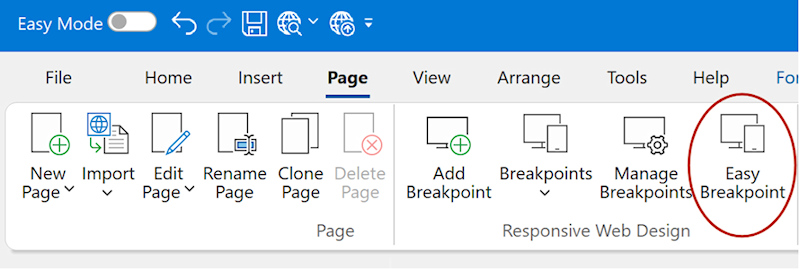
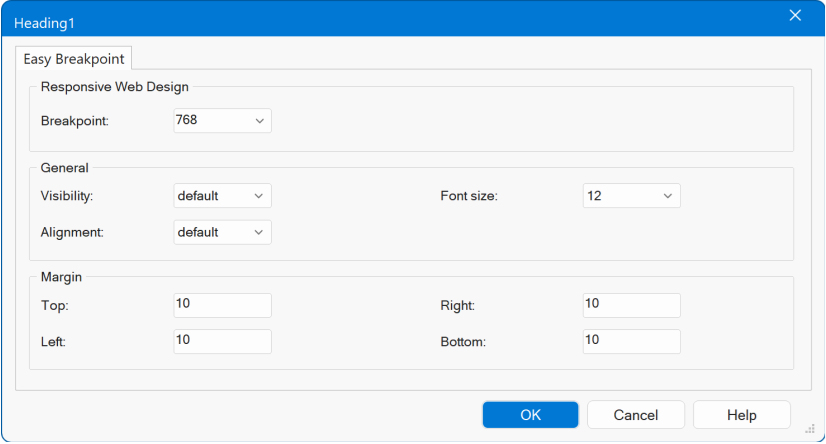
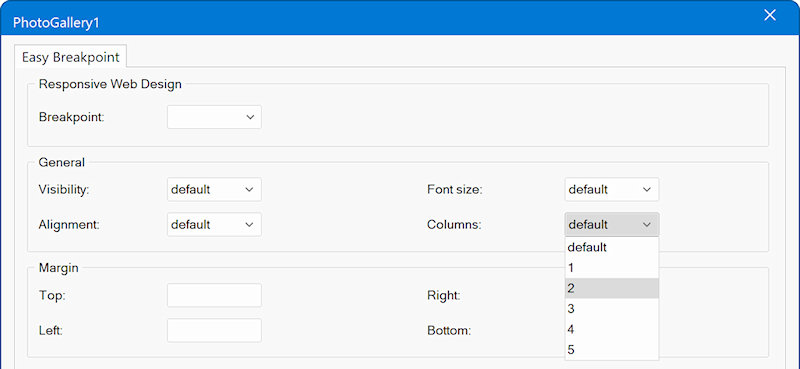
For most objects you can now simplify this task by using the new 'Easy Breakpoint' properties.
This is a single breakpoint where you can set some responsive properties just for that object, visibility, font-size, margin, padding or alignment.

Image

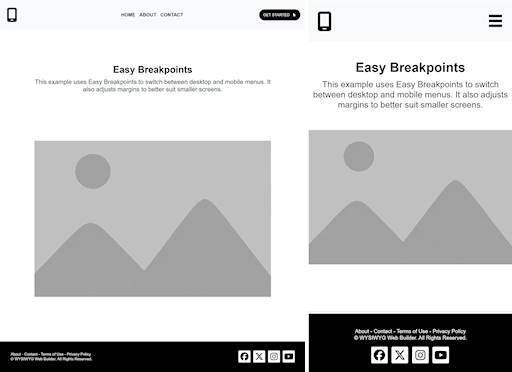
In the example below, we did not use any page breakpoints, but instead use Easy Breakpoint to set the responsive behavior for specific objects only.

Image

Demo
https://www.wysiwygwebbuilder.com/support/wb21tryouts/wb21_easybreakpoints.html

Some objects also support additional specialized options, for example:
• Photo Gallery: Set a different number of columns for the selected breakpoint.
• Flex containers and Flex Grid: Stack content at the selected breakpoint and adjust column alignment (for example, centering content on mobile).

Image

Another advantage of Easy Breakpoints is that they’re applied directly to the object, not the page. This means you can copy and paste the object into another page or even a different project, and all of its breakpoint properties will automatically come with it (unlike page breakpoints).

Image
User avatar
Pablo
 
Posts: 24268
Joined: Sun Mar 28, 2004 12:00 pm
Location: Europe
Contact:

Re: Can You Keep a Secret? (teaser)

Post by Pablo »

Image Converter

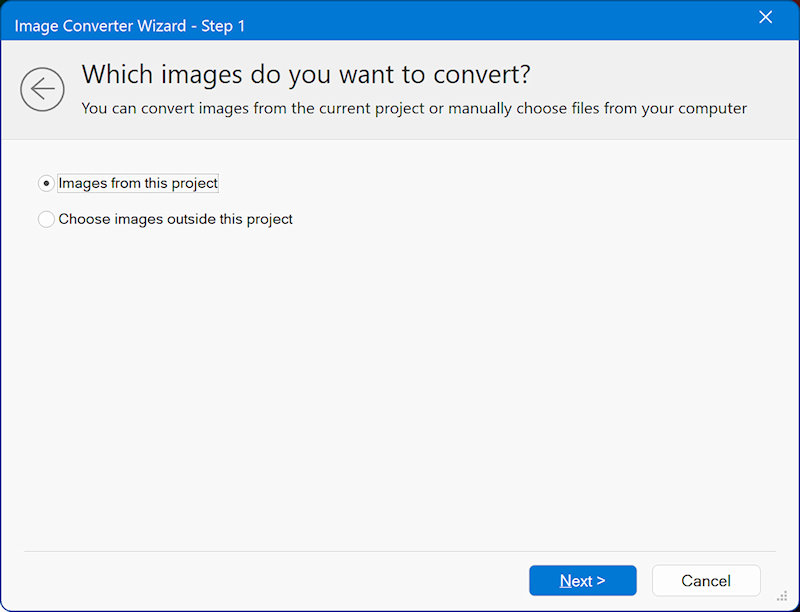
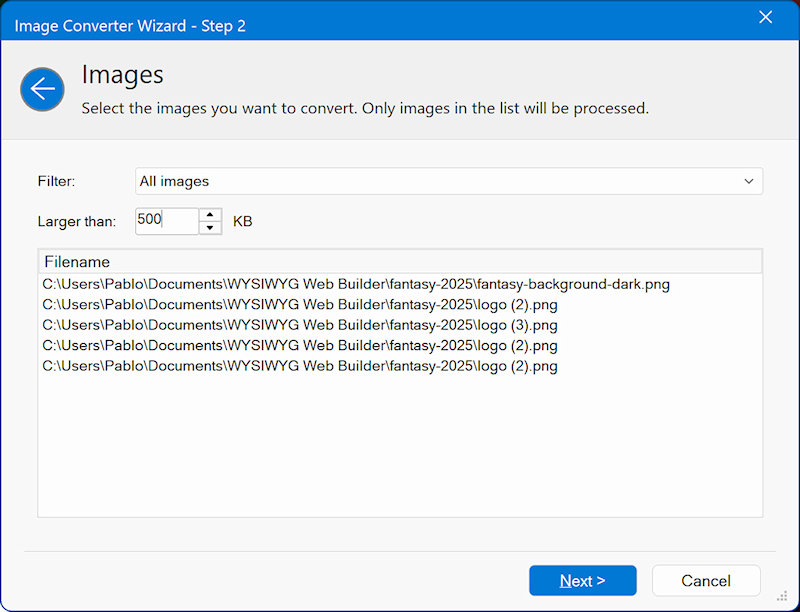
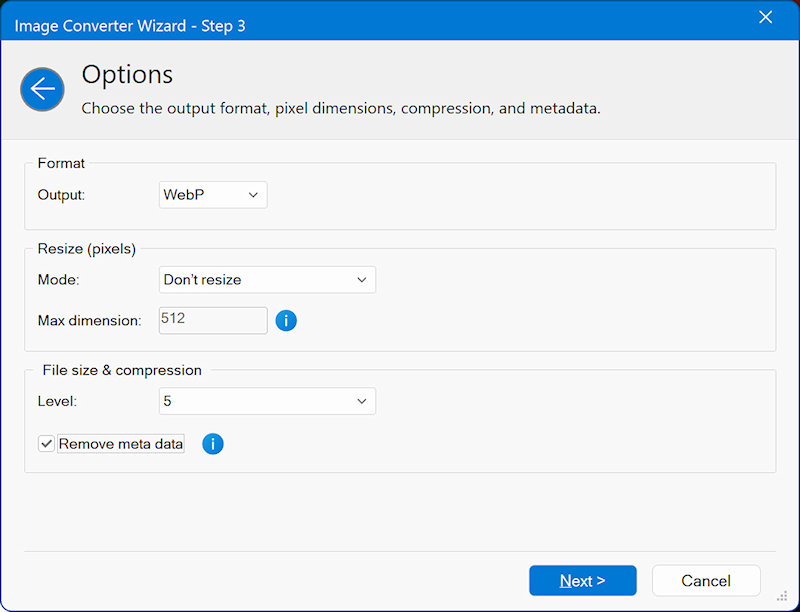
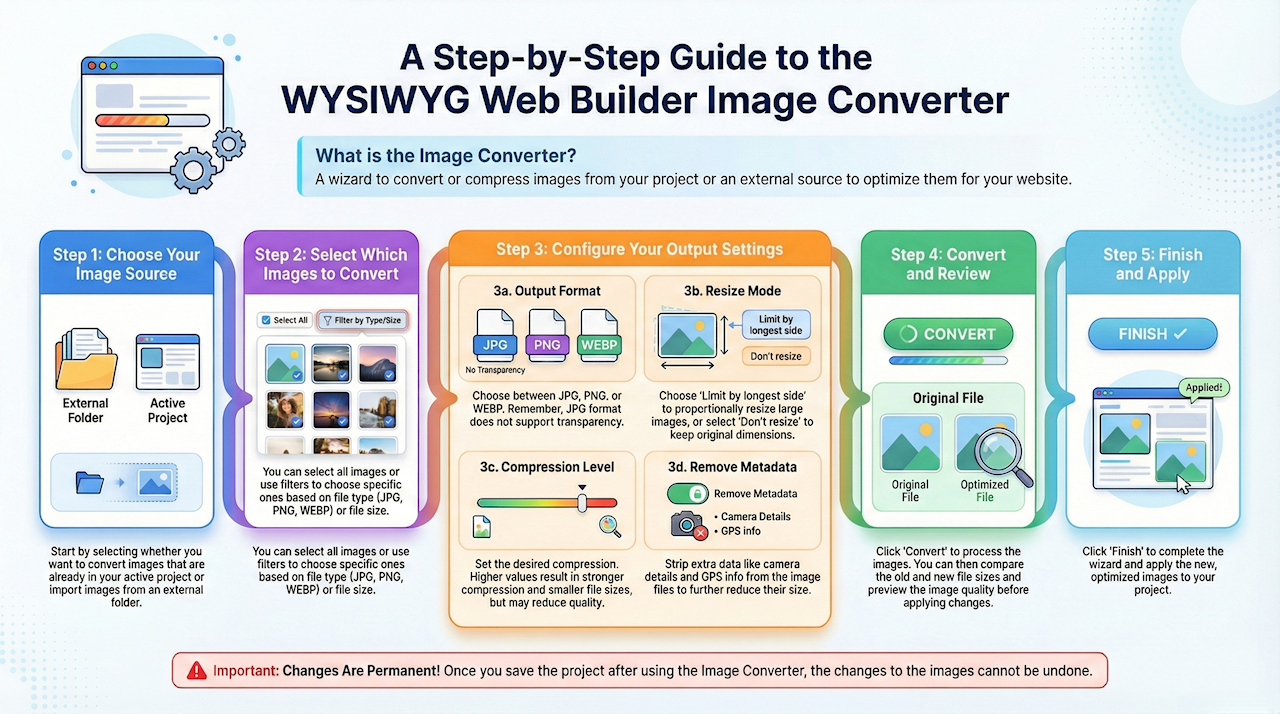
Added 'Image Converter' tool. The Image Converter is a new wizard that can be used to convert or compress images used by the project, but it also be used for external images!

Convert to jpg, png or webp format, set the maximum image dimensions and / or use compression to shrink the size of the images. It is also possible to remove meta data. When the tool is used for images used by the project, you can first preview the result before applying the new images to the project (automatically).

Image

Image

Image

Image
User avatar
Pablo
 
Posts: 24268
Joined: Sun Mar 28, 2004 12:00 pm
Location: Europe
Contact:

Re: Can You Keep a Secret? (teaser)

Post by Pablo »

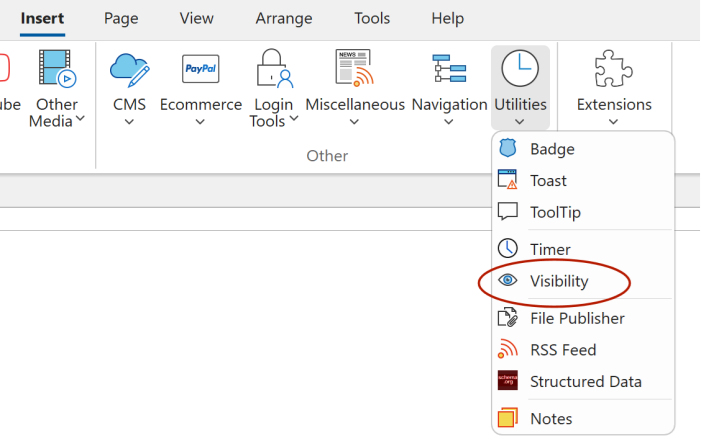
Visibility

A powerful utility for monitoring an element’s position within the viewport.
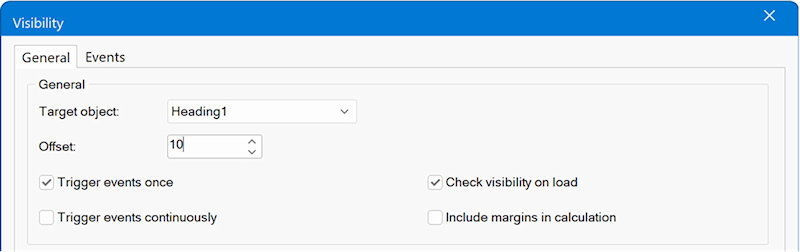
The Visibility object provides a set of events that make it easy to trigger actions based on how an element enters or leaves the visible area of the screen.

Image

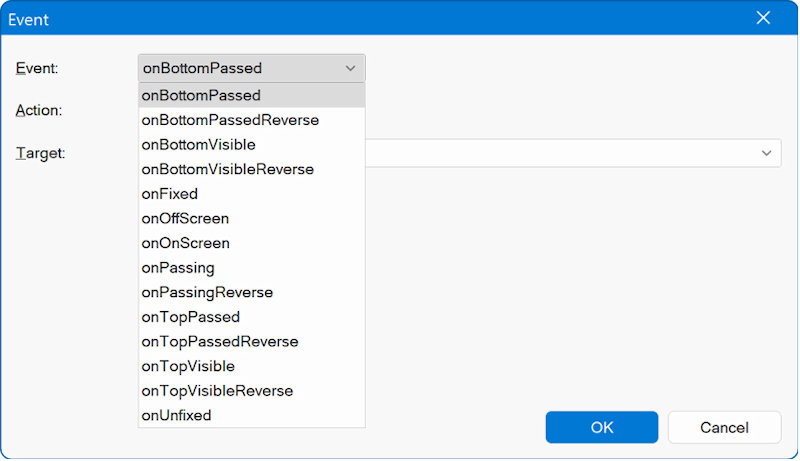
• onOnScreen – Triggered when any part of the element is within the current scroll viewport.
• onOffScreen – Triggered when no part of the element is visible in the viewport.
• onTopVisible – Triggered when the top edge of the element passes the bottom edge of the viewport.
• onBottomVisible – Triggered when the bottom edge of the element passes the bottom edge of the viewport.
• (and more...)

Image

Image

These events can be used to build interactive experiences, such as showing or hiding elements, starting or stopping media playback, or applying dynamic style changes.
Additionally, the Visibility object includes an option to fix an element’s position, so it remains visible in the viewport when it is about to scroll out of view.

You can apply custom CSS to define how the element should appear in its fixed state, for example, repositioning it or applying alternative styles.

Demos:
https://www.wysiwygwebbuilder.com/support/wb21tryouts/wb21_sticky.html

https://www.wysiwygwebbuilder.com/support/wb21tryouts/wb21_visibility.html
User avatar
Pablo
 
Posts: 24268
Joined: Sun Mar 28, 2004 12:00 pm
Location: Europe
Contact:

Re: Can You Keep a Secret? (teaser)

Post by Pablo »

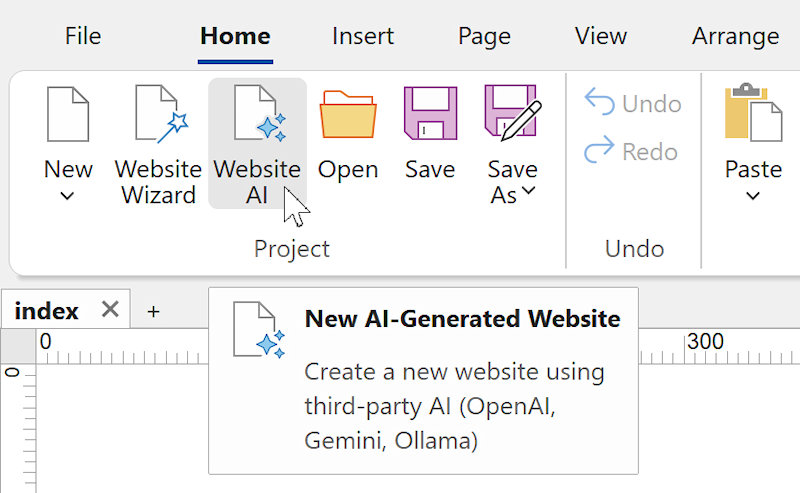
Create a new website using AI (text-to-website or image-to-website)

Added the ability to create a new website via text-to-website or image-to-website.
Image

WYSIWYG Web Builder already offered several quick ways to start a new project, such as using Blocks, selecting a Template, or using the Website Wizard.
With this update, we are introducing an entirely new workflow: Website AI.

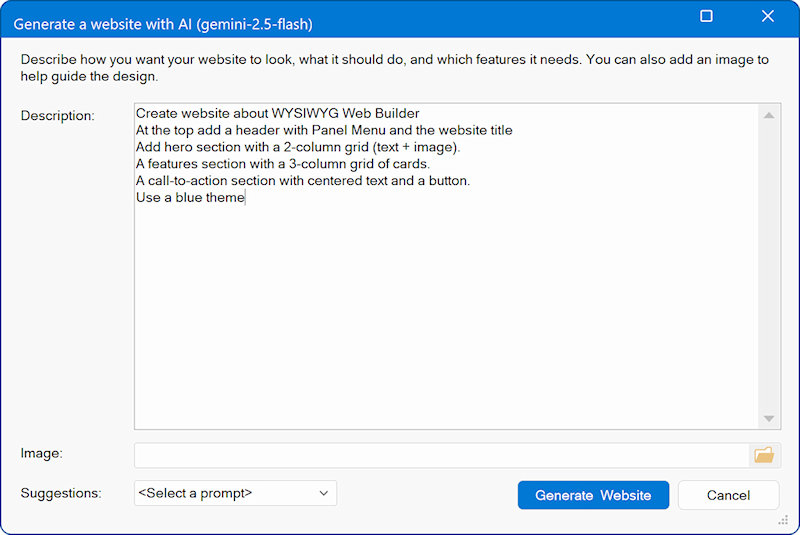
The new Website AI feature allows you to create a fully structured website using only natural-language instructions, powered by third-party AI providers such as OpenAI, Google Gemini, Ollama or LM Studio (local, free).
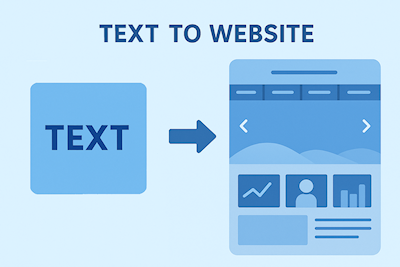
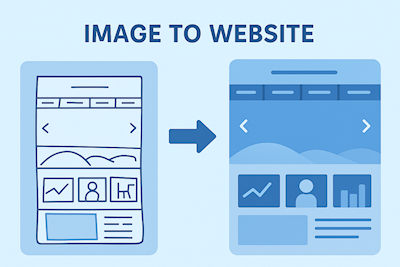
Image Image

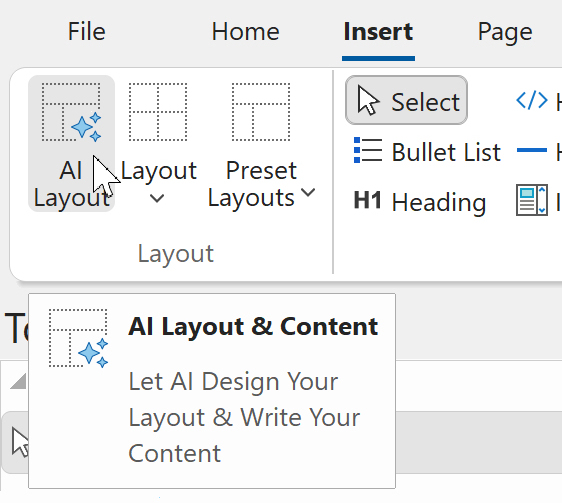
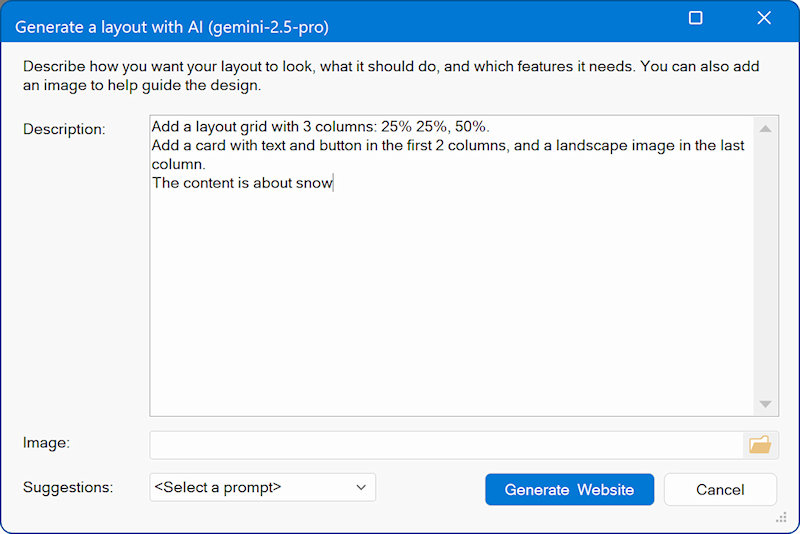
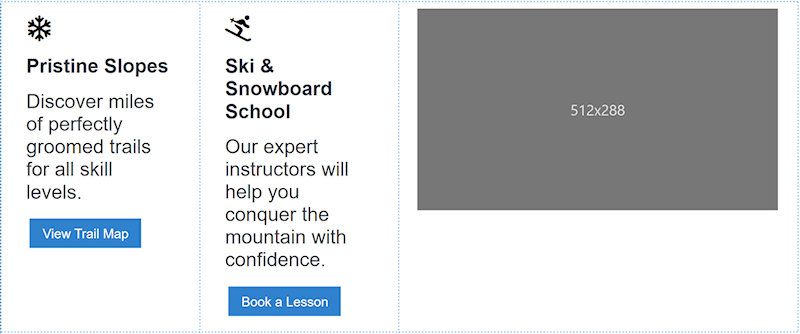
Simply describe the layout, content, colors, components, or overall design style you want. You can even upload an optional reference image, such as a sketch, wireframe, or mood board to guide the visual direction.
Once submitted, your description is sent to the selected AI model. The AI generates detailed layout instructions, which Web Builder uses to automatically construct a complete website based on your specifications.

The generated website may include one or multiple pages, and supports a wide range of elements, such as:
• Text blocks and headings
• Image placeholders with different aspect ratios (16:9, 4:3, 3:2, 1:1 etc)
• Layout grids
• Cards and content sections
• Buttons and interactive components
• Navigation menus (single or multi-level) and links
• Styling like font size, colors, backgrounds and borders
• Forms with customizable fields
• Custom scripts, JavaScript or PHP
• More features will be supported in upcoming updates
Image

This new tool enables designers, developers, and beginners alike to prototype full websites quickly, creatively, and without manual layout work all from a simple text description.

Examples
1. Very Simple Prompt
“Create a one-page website about my bakery with a short welcome text and a picture placeholder.”

2. Simple / Medium Prompt
“Build a small website for a local dog-walking service with a home page, an ‘about me’ section, and a contact form. Use friendly colors like light blue and green and include icons for phone and email.”

3. Medium Prompt
“Design a two-page website for a fitness coach. The home page should have a hero section, a list of services, and a testimonials section. The second page should contain a booking form. Use bold colors like black, red, and white.”

4. Advanced Prompt
“Create a modern portfolio site for a freelance photographer. Include a homepage with a large hero banner, a gallery section with 12 placeholder images, an ‘about’ page, and a contact page with a form. Use minimalist colors (white, dark gray, gold) and a clean grid-based layout.”

5. Highly Detailed / Complex Prompt
“Generate a multi-page website for a tech startup. Include pages for Home, Product, Pricing, Blog, and Contact. The home page needs a hero section with a short pitch, three feature cards, a comparison table, and a call-to-action. The Product page should include a step-by-step diagram and FAQs. The Blog page should have a list of article previews. Use a professional color scheme (navy, white, cyan). Add icons for features and a detailed contact form with fields for name, email, company, and message.”
User avatar
Pablo
 
Posts: 24268
Joined: Sun Mar 28, 2004 12:00 pm
Location: Europe
Contact:

Re: Can You Keep a Secret? (teaser)

Post by Pablo »

Add AI Content To Existing Layouts

In addition to creating a complete website from scratch, you can also enhance existing pages using AI.

Image

This allows you to generate new sections, components, or layout blocks and seamlessly insert them into the current design.
It’s a quick way to expand your site with fresh content, such as hero sections, galleries, info blocks, or forms without rebuilding the entire page.

Image

Image

Prompt:
Create a button menu with an icon for each item, use the following menu items: Programs,
Courses, Resources, About, Contact

Image

Prompt:
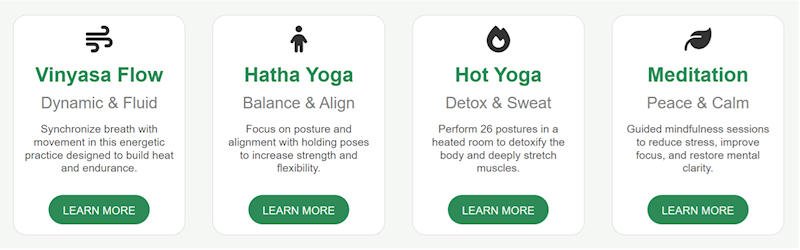
Create a layout grid with 4 columns for a Yoga website. Each column has a services card with title, subtitle, icon, description and a "LEARN MORE" button.

Image

Prompt:
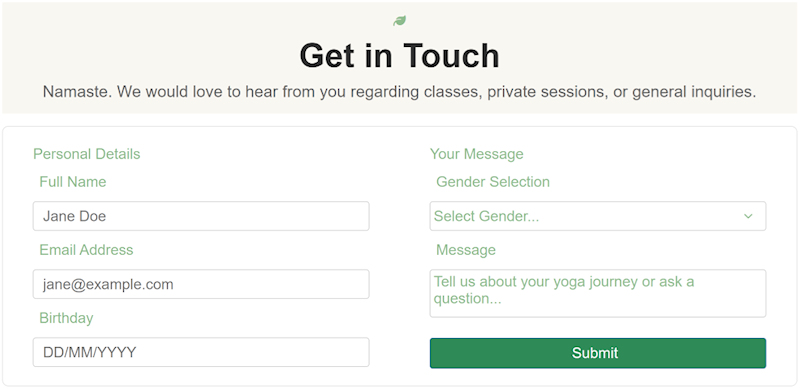
Create a contact form for a Yoga website. The form should have input fields for name, email, message, birthday and gender selection.

Image
User avatar
Pablo
 
Posts: 24268
Joined: Sun Mar 28, 2004 12:00 pm
Location: Europe
Contact:

Can You Keep a Secret? (teaser)

Post by Pablo »

This is just the beginning…
Join us again on Monday for even more exciting feature reveals.

And we’re only getting started, more than 100 new features still to come!
Locked